Rename a website
Choose which domain is shown as the website name in the Control Panel and add a description.
The name of a website in the Control Panel is its main domain — the primary name shown in the list of websites, in breadcrumbs and in the top header. You can change it to any other domain connected to the website and add your own description.
Note
Renaming is purely a Control Panel change. It does not affect FTP or Web Deploy logins, DNS records, SSL certificates or any technical configuration. The Site ID (siteXXXX) never changes.
Rename a website
Open the Rename dialog
Sign in to the Control Panel, go to Websites and click Rename on the row of the website. Alternatively open the website and click Change next to Name on the Overview page.
Choose the main domain
Select another domain in the Main domain list and click Save.
Add a description (optional)
Fill in Description — for example
production,stagingor the name of a client — and click Save. The Preview in lists shows how the website will look in the list.
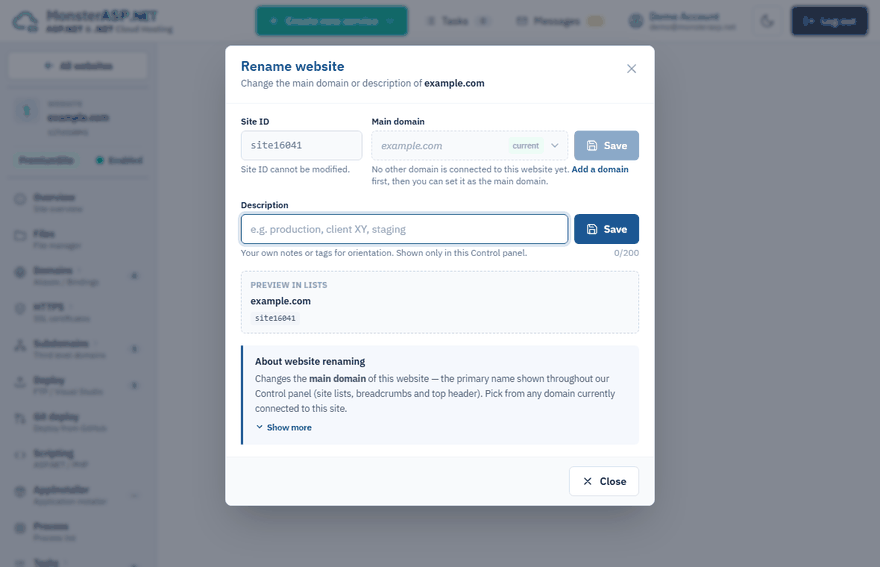
Each field has its own Save button and is saved separately.
The domain I want is not listed
Only domains that are already connected to the website can be selected. Add the domain first in the Domains section of the website; it then becomes selectable in the Rename dialog. See Add your own domain to a website.
Description
The description is for your own notes or tags, up to 200 characters. It is shown only in the Control Panel and helps you tell websites apart when you manage several of them. You can also search by it in the list of websites.
Rename from the Domains page
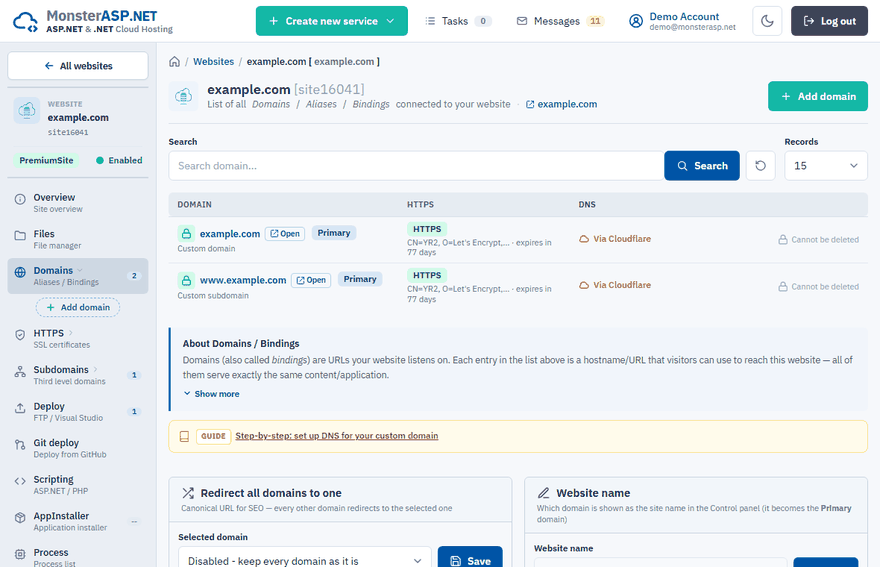
The same setting is available on the Domains page of the website, in the Website name card. Select the domain and click Save. The selected domain becomes the Primary domain of the website.
Note
The primary domain cannot be deleted from the website. If you want to remove it, make another domain primary first.
Send all visitors to one domain
Changing the main domain does not change what visitors see — every domain connected to the website keeps serving the same content. If you want all domains to redirect to a single address, use the Redirect all domains to one card on the Domains page: choose the Selected domain and click Save.