Create an MSSQL database
Add a SQL Server database in the Control Panel; its main user is created automatically.
A database is a separate service in the Control Panel — you create it with a short wizard and then connect your website to it. The main database user is created together with the database. You do not need to have a website to create a database.
Create the database
Start the wizard
Sign in to the Control Panel, go to Databases and click Add database.
Choose the plan
Click Select PREMIUM database or Select FREE database. Premium needs a free database slot in one of your subscriptions; if you have none, you are taken to order a subscription or add capacity first.
Choose the database type
Select SQL Server 2025. The MSSQL database settings panel appears with Collation and User language. The defaults fit the vast majority of applications — change them only if you know you need to. Click Continue.
Choose the subscription (Premium only)
Pick the subscription whose database slot should be used and click Continue. For a Free database this step is skipped.
Choose the datacenter
Click Select EU datacenter or Select USA datacenter. Pick the location closest to the application that will use the database — ideally the same datacenter as your website. The USA datacenter is not available for the Free plan.
Create the database
Click Create Database. The database is prepared in the background and appears in your Databases list within a few moments.
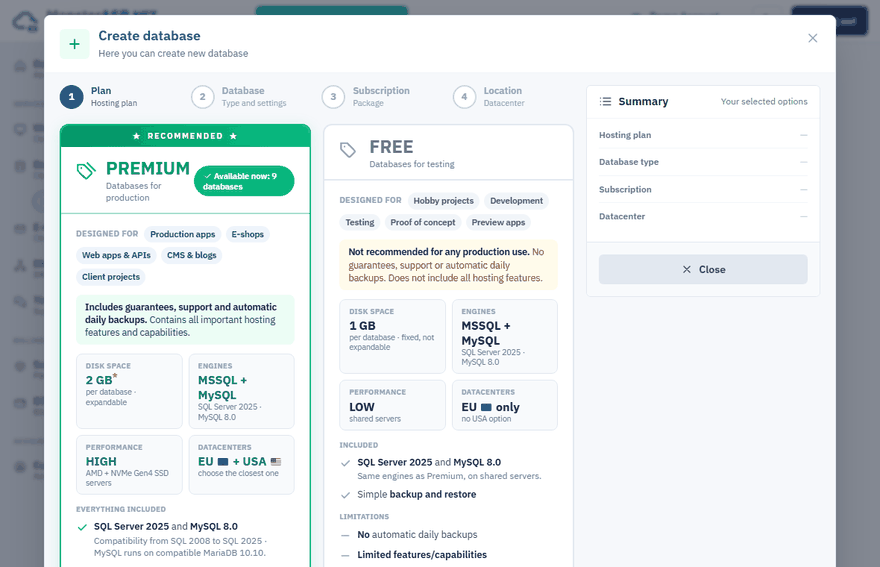
Free or Premium?
| Free | Premium | |
|---|---|---|
| Intended for | Testing, development, hobby projects | Production applications |
| Disk space | 1 GB, fixed | 2 GB, expandable with add-ons |
| Datacenters | EU only | EU or USA |
| Automatic daily backups | No | Yes, kept for 14 days |
See Free and Premium plans compared for the full comparison.
Important
Create the website and its database on the same plan. A Premium website cannot use the local connection string of a Free database, and the other way round.
Collation and user language
Collation decides how text is stored, sorted and compared. In the name, CI means case-insensitive, CS case-sensitive and AS accent-sensitive. If you are not sure, keep the default SQL_Latin1_General_CP1_CI_AS — it is what most .NET frameworks and CMS installers expect.
User language sets the language of server messages and the date format for the database login. It does not translate your data.
Tip
Restoring a backup from another server? Pick the same collation as the original database to avoid "collation conflict" errors when joining or comparing text columns.
The collation can be changed later on the Overview page of the database, but that only changes the default for new objects — columns in existing tables keep the collation they were created with.