Back up and restore a MySQL database
Create backups, download them and restore a database from a file.
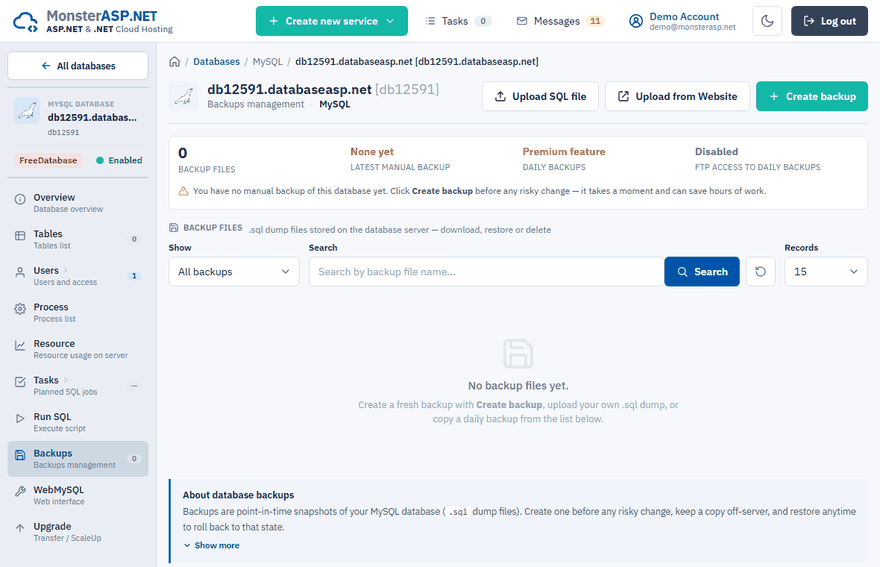
A MySQL backup is a point-in-time snapshot of your database in a .sql dump file. Backups are managed on the Backups page of the database in the Control Panel (Databases → your database → Backups).
Create a backup and download it
Create the backup
On the Backups page click Create backup. A fresh full backup of the database is created and added to the Backup files list.
Download it
Click Download next to the file to save the
.sqldump to your computer. Keep an off-site copy for safety.
Only one backup or restore can run for a database at a time.
Restore a backup
Warning
A restore replaces all current content of the database with the content of the backup. Users and access settings are kept.
Get the dump into the list
A backup you created here is already in the Backup files list. For a dump from another server click Upload SQL file (from your computer, up to 2 GB) or Upload from Website (a
.sqlfile already uploaded to one of your hosted websites).Start the restore
Click Restore next to the file. Leave Create a safety backup of the current data first (recommended) ticked — the current data is saved as a
_before_restore_file in the list, so you can roll back.Confirm
Tick I understand that all current data will be replaced and click Restore backup. The restore runs immediately and can take a while for large dumps — keep the window open until it finishes.
Daily backups (Premium)
Premium databases are also backed up automatically once per day. The daily backups are stored on separate storage, off the database server, and older ones are removed automatically.
To use a daily backup, click Upload next to it in the Daily backups panel. It is copied into the Backup files list, where you can download or restore it.
Note
Automatic daily backups and FTP access to them are Premium features.
FTP access to daily backups (Premium)
The FTP access to daily backups panel provides a dedicated FTP/SFTP account for downloading the daily .sql dumps, for example to mirror them to your own storage. Switch it to Enabled — this is possible once at least one automatic backup exists — and connect with the FTP server, Ports, Login and Password shown, or click Open next to WebFTP. Prefer FTPS or SFTP, and switch the access off again when you no longer need it.