Node.js debug logging (HttpPlatform)
Capture the output of a Node.js, Angular SSR or Next.js application.
A Node.js application on your website is started by the web server through the HttpPlatform handler. When such an application — Node.js, Angular SSR, Next.js and similar — fails to start or returns a 500 error, the default error page shows no details. The HttpPlatform debug log captures the full output of the process, including exceptions and startup errors.
Turn it on and read the log
Open the logs
Sign in to the Control Panel, go to Websites, select your website and choose Logs in the left menu.
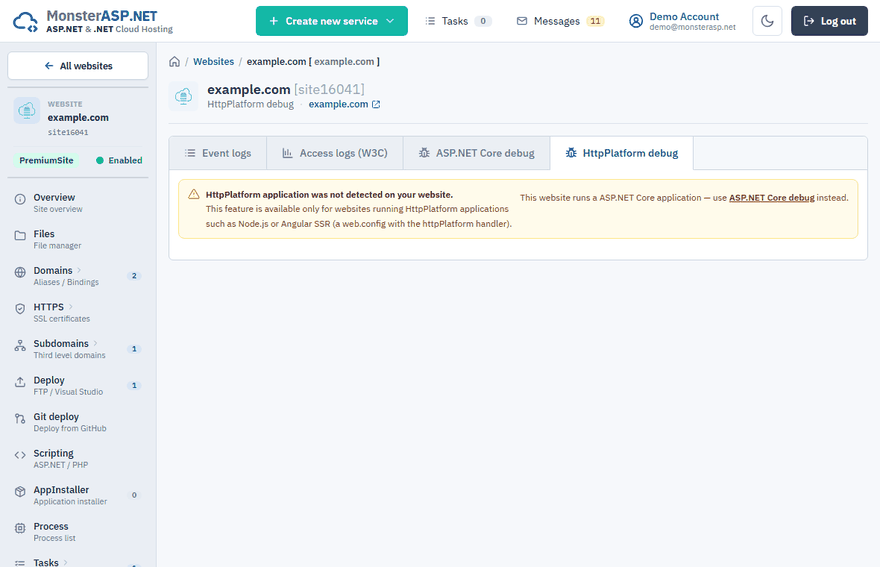
Open the HttpPlatform debug tab
Click HttpPlatform debug.
Enable logging
Switch Status to Enabled. This turns on stdout logging and restarts your application.
Read the log
Wait a moment. Everything the process writes to its standard output — including
console.logoutput and error messages — appears below, with the newest lines at the bottom. If the log is empty, click Restart application & reload log to force a new capture.Disable logging
When you are done, switch Status back to Disabled. Logging is turned off and the application restarts cleanly.
Warning
Debug logging is performance and disk intensive: it slows the application down and the log files keep growing. Always disable it once you finish debugging.
Working with the log
- Reload log reads the current log file again.
- Restart application & reload log restarts the application and creates a new log file for a fresh capture.
- Copy log copies the whole log to the clipboard.
The log files are written to .\logs\stdout_*.log inside your website. You can also download them over FTP from the /wwwroot/logs directory, or open them in the browser: click Open next to WebFTP on the Deploy page, go to /wwwroot/logs/ and view a log file with the edit option.
Before you turn debug logging on, check the regular website logs first — each entry there has a detail that often already explains why the application is not working.
The page says the application was not detected
The message HttpPlatform application was not detected on your website means that /wwwroot does not contain a web.config with the httpPlatform handler. Without it the web server does not start a Node.js process at all.
- If you deploy with Git deploy and the Node.js SSR app type, the
web.configis generated for you on every Build & publish. - If you upload the application yourself, the
web.configmust be part of the upload.
For .NET applications use ASP.NET Core debug logging instead.
Related
- Read website logs
- View and restart processes — check whether
node.exeis running