Run PHP on your website
Select the PHP version, upload your scripts to wwwroot and check the configuration with phpinfo().
PHP is a scripting language for building dynamic websites and web applications. To run it on your website you select a PHP version in the Control Panel and upload your scripts into /wwwroot.
Select the PHP version
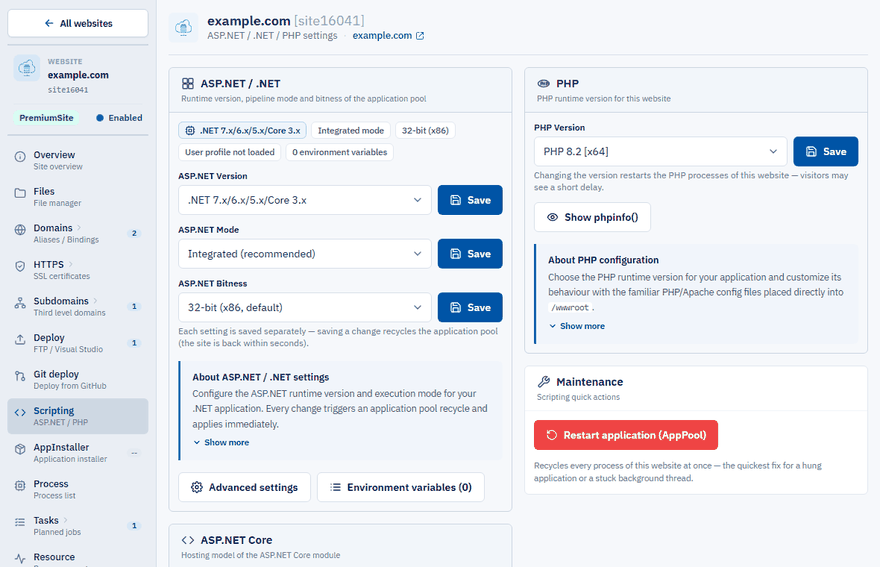
Open Scripting
Sign in to the Control Panel, go to Websites, select your website and choose Scripting in the left menu.
Choose the version
In the PHP card select the version in the PHP Version list.
Save
Click Save. Changing the version restarts the PHP processes of the website.
Note
If the PHP card says PHP is not available, PHP is not enabled for your account. See Choose the .NET and PHP version.
Upload your scripts
All PHP files must be located in /wwwroot, the root directory of your website. You can deploy them in several ways:
| Method | Speed |
|---|---|
| Web Deploy from the command line | Fastest |
| ZIP archive uploaded and extracted on the server | Fast |
| FTP / SFTP with FileZilla | Slower |
For a few files the simplest way is WebFTP: open webftp.monsterasp.net (or click Open next to WebFTP on the Deploy page, which signs you in automatically) and upload the files into wwwroot.
Test it
To check that PHP works and to see its configuration, upload a file named info.php into /wwwroot with this content:
<?php
phpinfo();
?>
Then open it in your browser, for example http://yourdomain.com/info.php. The page lists the PHP version, the loaded modules and all configuration values.
Tip
You can see the same information without uploading anything: click Show phpinfo() in the PHP card on the Scripting page.