Secure your account
Use a strong password, turn on two-factor sign-in and review your login history.
Your Control Panel account controls your websites, databases, e-mails and billing. Three things keep it safe: a strong password, two-factor sign-in and an occasional look at the login history.
Use a strong password
Use a password you do not use anywhere else. A long passphrase of several words is both strong and easy to remember, or let the Control Panel generate a random 16-character password for you.
You change the password in Settings → Change password. See Change or reset your password.
Turn on two-factor sign-in
With two-factor authentication (OTP) every login needs your password and a 6-digit code from an authenticator app on your phone. A leaked or phished password is then not enough on its own.
You set it up on the Two-factor authentication card in Settings. See Two-factor sign-in.
Tip
It takes a minute: scan a QR code with Google Authenticator, Microsoft Authenticator, Authy, 1Password or any other TOTP app and confirm with one code.
Review your login history
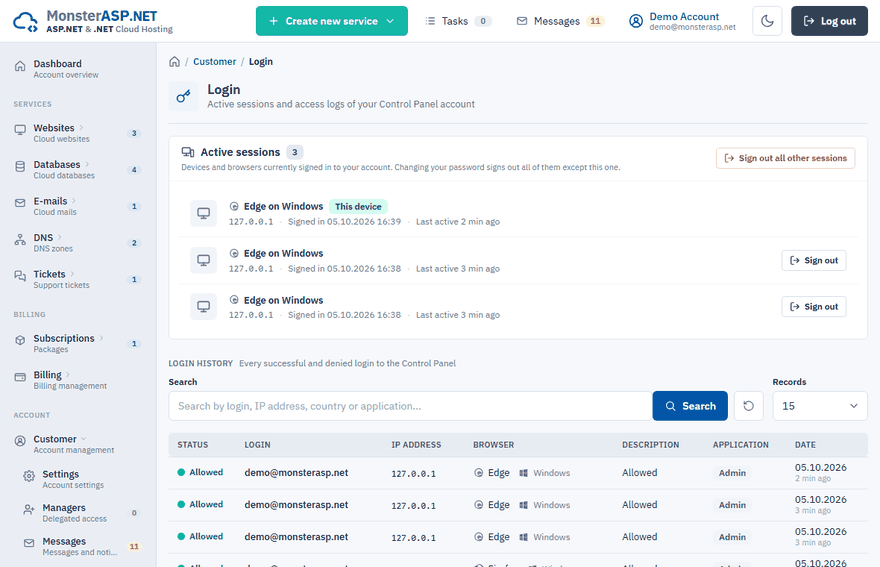
The Login page lists the devices currently signed in to your account and every successful and denied login. You can sign out a single device or all other sessions at once. See Review your login history.
Do not share your password
If a colleague, agency or IT partner needs to work with your services, do not give them your login. Add them as a manager instead: they sign in with their own account, see only what their role allows, and you can revoke the access at any time. See Give someone access with Managers.