Back up and restore a PostgreSQL database
Create backups, download them and restore a database from a file.
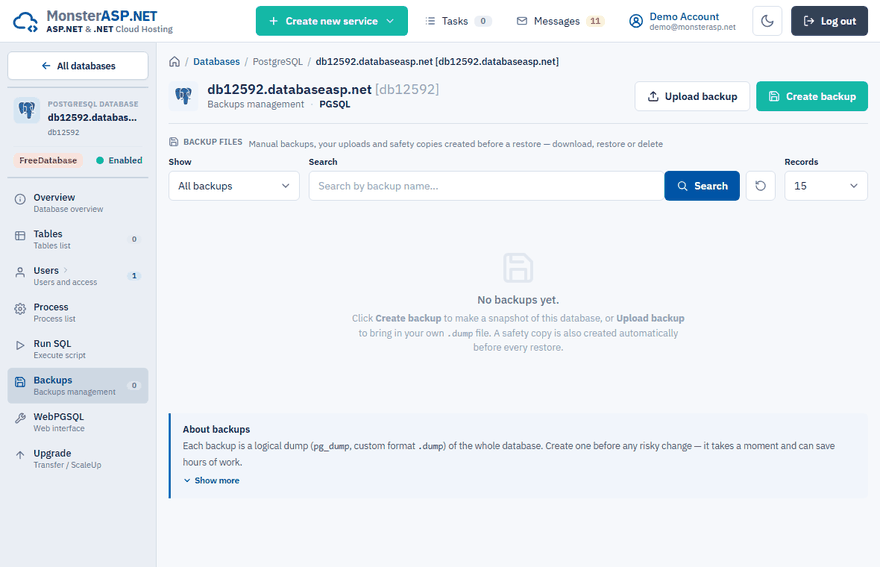
A PostgreSQL backup is a logical dump of the whole database, made with pg_dump in the custom format (.dump). Backups are managed on the Backups page of the database in the Control Panel (Databases → your database → Backups).
Create a backup and download it
Create the backup
On the Backups page click Create backup. A snapshot of the database is added to the Backup files list.
Download it
Click Download next to the file to save the
.dumpfile to your computer. Keep an off-site copy for safety.
Note
Backup files count against the disk limit of the database. Delete the backups you no longer need.
You can restore a downloaded backup on another PostgreSQL server with pg_restore:
pg_restore --no-owner --no-acl -d your_db file.dump
Restore a backup
Warning
A restore overwrites the current contents of the database with the backup. Make sure no application is writing to the database, and terminate open connections on the Process page first if needed.
Start the restore
In the Backup files list click Restore next to the backup.
Keep the safety backup
Leave Create a safety backup first ticked. A copy of the current data is saved before the restore, so you can go back to the state from just before it.
Confirm
Tick the confirmation that the current data will be overwritten and click Restore backup.
Restore a backup from another server
Create the dump in the custom format
On the source server run
pg_dump -Fc, or in pgAdmin choose Backup with the format Custom. The file must have the.dumpor.backupextension.Upload it
On the Backups page click Upload backup and choose the file (up to 2 GB). Keep the window open until the upload finishes.
Restore it
The file appears in the Backup files list. Click Restore next to it.
Only the PostgreSQL custom format is accepted. A plain .sql script cannot be restored from the Backups page — run it on the Run SQL page or in WebPGSQL instead.
Kinds of backups
Use the Show filter above the list to see only one kind:
| Kind | Where it comes from |
|---|---|
| Manual | Created with Create backup. |
| Uploaded | Your own dump brought in with Upload backup. |
| Safety | Created automatically right before a restore. |