Run a T-SQL query in the Control Panel
Execute ad-hoc scripts with the built-in Run T-SQL editor, and its limits.
The Run T-SQL page is an ad-hoc query editor built into the Control Panel. Use it for a quick query or a small script when you do not want to open SSMS or a web interface.
Run a script
Open the page
In the Control Panel go to Databases, open your database and choose Run T-SQL in the left menu.
Write the script
Type the script into the editor, or pick a ready-made one from Load template — for example List all tables, Top 20 largest tables by size or Index fragmentation (this database).
Execute
Click Execute or press
Ctrl+Enter. To run only a part of the script, select it first.
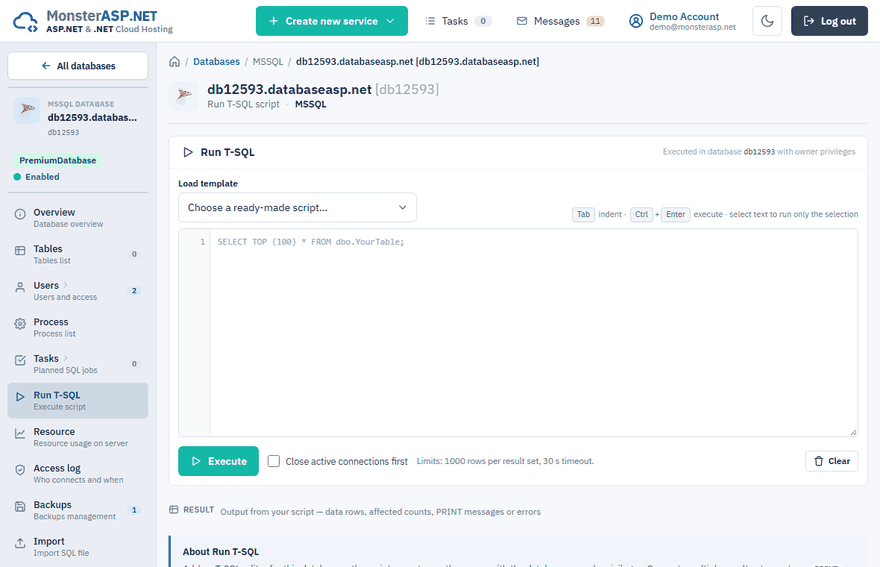
The Result panel shows the returned rows, affected row counts, PRINT messages and errors. A script can contain several batches separated by GO, and each batch can return multiple result sets.
Warning
The script runs with the owner privileges of the database. There is no undo — create a backup before running statements that change or delete data.
Limits
| Limit | Value |
|---|---|
| Rows per result set | 1000 — use TOP N to choose which rows you get |
| Query timeout | 30 seconds |
| Blocked commands | DROP DATABASE, CREATE DATABASE, OPENROWSET, BULK INSERT, EXECUTE AS and login/user management |
For anything bigger use Import a .sql script, which runs in the background, or connect with SQL Server Management Studio.
A statement is blocked by another connection
If your statement waits because a stuck connection holds a lock, tick Close active connections first. It ends every other session of the database before the script runs.