Follow the task queue
Check the progress of operations that run in the background.
Many operations in the Control Panel do not happen instantly. When you create or change a service, a task is placed in a queue and carried out in the background. The Tasks page shows what is waiting, what is running and how each task ended.
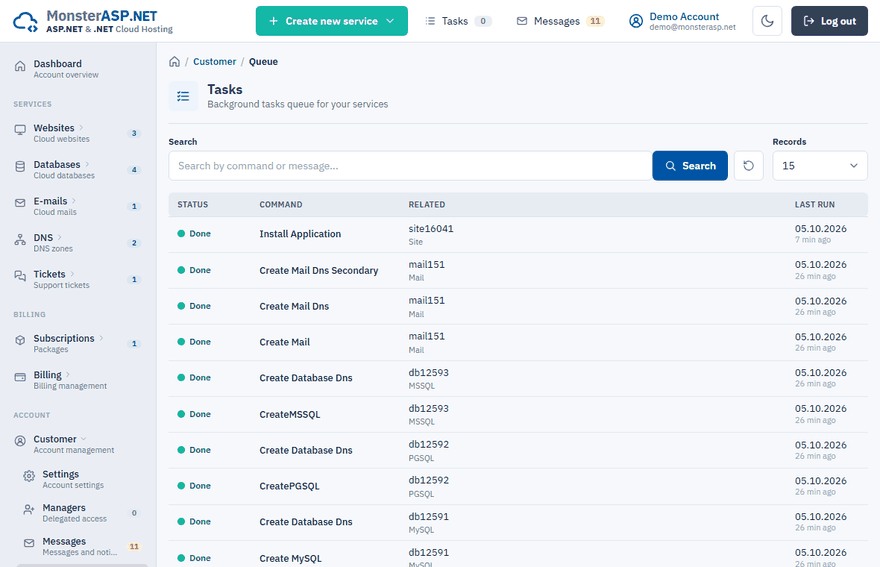
Open the task queue
Sign in to the Control Panel and either:
- click Tasks in the top bar — the number next to it shows how many tasks are still waiting, or
- choose Tasks in the Customer section of the left menu.
Read the list
| Column | What it shows |
|---|---|
| Status | The current state of the task (see below). |
| Command | The operation that is carried out. |
| Related | The service the task belongs to and its type. |
| Last run | When the task was last processed. |
A task goes through these states:
| Status | Meaning |
|---|---|
| Pending | The task is waiting in the queue. |
| In progress | The task is being carried out right now. |
| Done | The task finished successfully. |
| Error | The task failed. |
While some tasks are still running, the list refreshes automatically every 5 seconds, so you do not have to reload the page. Most tasks finish within a minute.
Use Search to find a task by command or message, and Records to choose how many rows are shown.
When a task takes long or fails
- Give it a moment. Larger operations, such as transferring a website to another server, take longer than a simple change.
- If a task ends with Error, or stays Pending for a long time, open a support ticket. Mention the service and the command shown in the list so that we can find the task quickly.
Tip
A change you just made is not visible yet? Check Tasks first — the operation may still be waiting in the queue.
Still stuck?
Our support team is happy to help.