Two-factor sign-in
Protect your account with a one-time code from an authenticator app.
Two-factor authentication (OTP) adds a second step to signing in: besides your password you enter a 6-digit code from an authenticator app on your phone. A leaked or phished password alone is then not enough to get into your account.
The codes are generated offline by the app and change every 30 seconds. No SMS and no internet connection on the phone is needed.
What you need
An authenticator app on your phone: Google Authenticator, Microsoft Authenticator, Authy, 1Password or any other TOTP app.
Turn it on
Open Settings
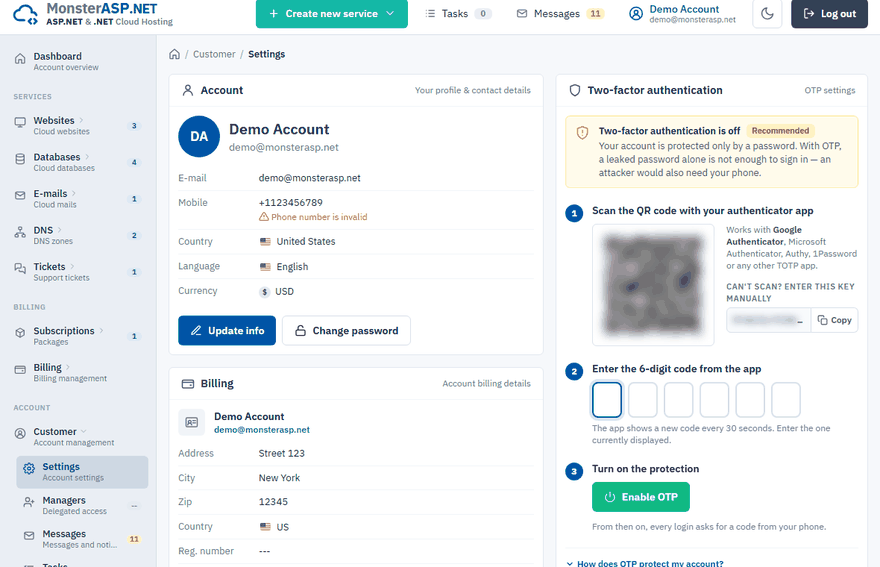
Sign in to the Control Panel and choose Settings in the Customer section of the left menu. Find the Two-factor authentication card.
Scan the QR code
Scan the QR code with your authenticator app. If you cannot scan it, open Can't scan? Enter this key manually and type the key into the app.
Enter the code
Type the 6-digit code the app currently shows.
Enable
Click Enable OTP. The card now shows Two-factor authentication is on.
Sign in with a code
After you enter your e-mail and password, the Two-Factor Authentication page asks for a Verification code. Open the authenticator app and enter the code shown next to MonsterASP.NET. The code is checked automatically once all six digits are filled in.
Cancel discards the sign-in attempt and returns you to the login page.
Turn it off or move to a new phone
Click Disable OTP
On the Two-factor authentication card in Settings click Disable OTP.
Confirm with your password
Enter your Current password and click Disable OTP.
To switch phones or authenticator apps, disable OTP first and then set it up again on the new device.
Warning
While OTP is off, your account is protected by the password only. Turn it on again as soon as the new device is ready.
Lost access to the app?
Contact our support at support [at] monsterasp.net from the e-mail address of your account and we will help you regain access.