Change your account settings
Update your contact details and preferences.
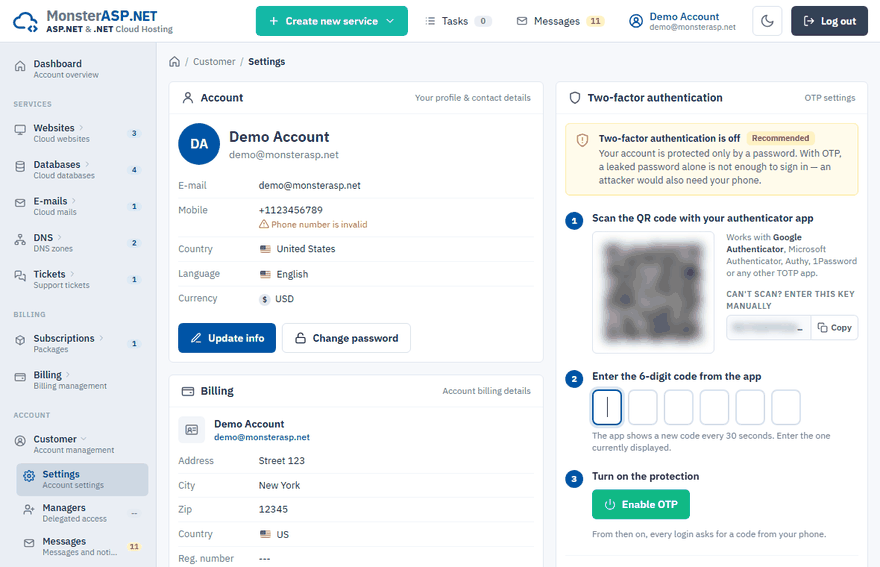
The Settings page shows the profile of your account: your contact details, the billing details of the account and the state of two-factor sign-in. Keep the contact details current — we use them to reach you about your services.
Open your settings
Sign in to the Control Panel and choose Settings in the Customer section of the left menu. The page has three cards:
| Card | What it shows |
|---|---|
| Account | Your name, E-mail, Mobile, Country, Language and Currency. |
| Billing | The billing details of the account: address, Reg. number, VAT number and currency. |
| Two-factor authentication | Whether a one-time code is required at sign-in. See Two-factor sign-in. |
Update your contact details
Click Update info
On the Account card click Update info. The Update account details window opens.
Edit the contact details
Change your Full name — your own name, or the company name if the account belongs to a company — and your Mobile phone number. Enter the number in international format with the country code, for example
+1XXXXXXXXXX. It is used for account verification.Check the region
Choose your Country and Currency (USD, EUR or GBP). Both are used on your invoices. Choosing a different country pre-fills the phone number with its dialling code. Language is English only for now.
Save
Click Save changes.
Important
Country and Currency are locked while you have an active Premium subscription, because they are printed on your invoices. Contact support if they need to change.
What you cannot change here
- E-mail is the login of your account and is locked. To change it, open a support ticket — see Change your e-mail or delete your account.
- The invoicing address is entered when you order or renew a subscription — see Change your billing details.