Create your first website
Walk through the Add website wizard and get a working website on a free subdomain.
A new website is created with the Create website wizard. It asks for a plan, an address and a datacenter, and a moment later your website is running on a free subdomain. This guide follows the Free plan; the Premium steps are noted along the way.
Start the wizard
Sign in to the Control Panel and click New website on the Dashboard, or go to Websites and click Add website.
Choose the plan
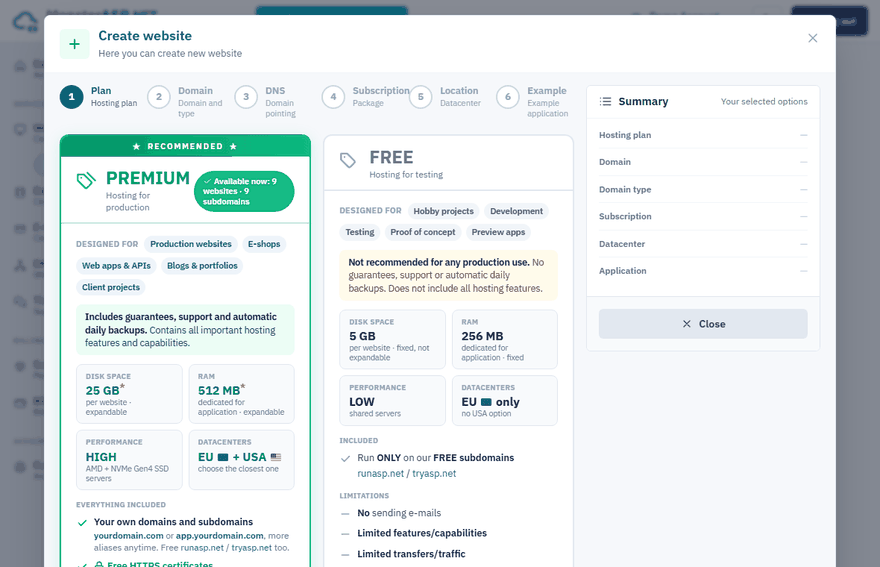
Click Select FREE website for testing, development and hobby projects, or Select PREMIUM website for production. The differences are summed up below and in Free and Premium plans compared.
Choose the website address
With Free subdomain selected, type a name into Website address and pick one of the free domains (
runasp.net/tryasp.net). The name needs at least 3 characters: letters a–z, numbers 0–9 and dash. Your address becomes, for example,yourname.runasp.net. Click Continue.Choose the datacenter
Pick the location closest to you and most of your visitors and click Continue. The Free plan runs in the Europe Datacenter only; Premium websites can also use the USA Datacenter.
Choose an example application (optional)
Keep My own application to get an empty website for your own code, or let us pre-install one of the small demo projects (.NET 10 Web API, Blazor, SignalR Chat, Angular SPA, Next.js).
Create the website
Check the Summary and click Create Website. The website is prepared in the background and appears in your Websites list within a few moments.
Note
An example application is installed into the root of your website. You will need to delete its files before you upload your own application, so pick My own application if you are deploying your own code right away.
Free or Premium?
This is what the first step of the wizard shows for each plan:
| Free | Premium | |
|---|---|---|
| Designed for | Hobby projects, development, testing | Production websites, e-shops, web apps and APIs |
| Disk space | 5 GB, fixed | 25 GB, expandable |
| RAM | 256 MB, fixed | 512 MB, expandable |
| Datacenters | EU only | EU + USA |
| Address | Free subdomains only | Your own domains and subdomains, free subdomains too |
| Automatic daily backups | No | Yes, kept for 14 days |
A Premium website needs a Premium subscription with a free website slot. The wizard then adds two more steps: DNS (how to point your own domain) and Subscription (which subscription the website uses). See Create a website for your own domain.
After the website is created
Open the website from the Websites list and continue with Publish your first application.
Tip
Started on the Free plan? You can move the website to Premium later without creating it again — see Upgrade from Free to Premium.