Give someone access with Managers
Delegate access to your account without sharing your password.
Managers let you give a colleague, IT partner or administrator access to your account without sharing your password. A manager signs in with their own credentials and manages your services according to the permission you choose.
Before you start
- The manager must already have their own MonsterASP.NET customer account.
- Delegated access is available only for accounts with a Premium subscription — yours or the manager's.
Add a manager
Open Managers
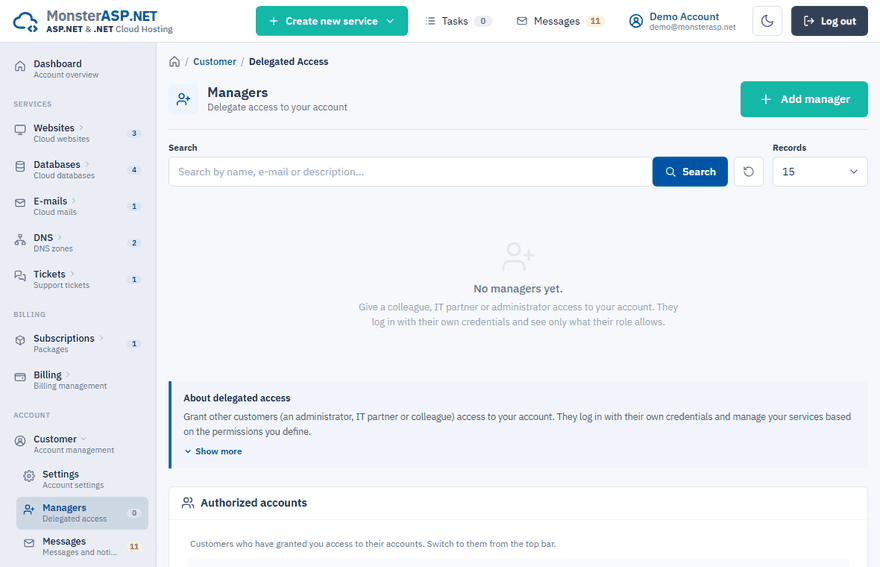
Sign in to the Control Panel and choose Managers in the Customer section of the left menu.
Click Add manager
Enter the E-mail address of the manager — the login e-mail of their customer account.
Choose the permission
Select Full access, Technical or Billing (see the table below).
Set optional details
Access expires limits the access to a date; leave it empty for no expiry. Description is a note for your own reference, for example IT partner or agency.
Confirm
Click Add manager. The manager gets an e-mail that they have been granted access and can start using it immediately.
Permissions
| Permission | What the manager can work with |
|---|---|
| Full access | All services and billing, but not your account settings (password, billing info, OTP). |
| Technical | Websites, databases, e-mails, DNS and support tickets. |
| Billing | Invoices, subscriptions and billing contacts only. |
Change or pause the access
Click Edit next to a manager to change the Permission, the expiry date or the description. Set Status to Disabled to pause the access without deleting it.
Revoke the access
Click Delete next to the manager and confirm with Delete manager. The manager can no longer switch to your account or manage your services. Their own customer account is not affected, and you can add them again later.
Accounts shared with you
The Authorized accounts card on the same page lists the customers who have granted you access to their accounts, together with your permission in each. See Switch between accounts.
Tip
Only need to let someone upload files to one folder? An extra FTP account is enough — see Create an FTP account limited to a folder.