Database uses too much CPU
Find and fix the queries that overload your database.
Database servers are shared, so a database that uses an unusual amount of CPU or disk I/O slows down your own application and other customers too. When that happens we contact you, and in serious cases the database can be temporarily limited or disabled by the automatic protection.
High CPU usage is practically always caused by inefficient queries. A faster server does not fix them — the fix is in the application or the database design.
See the usage
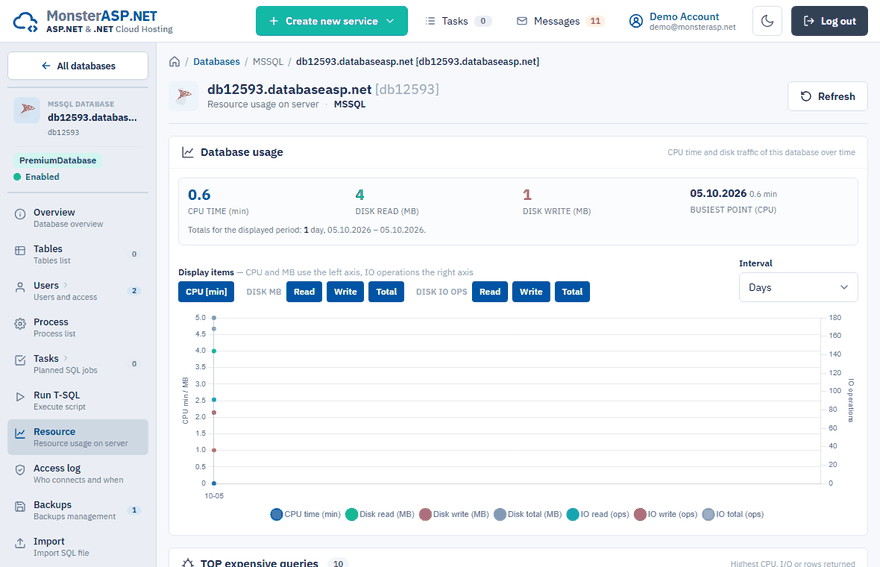
In the Control Panel go to Databases, open your database and choose Resource. The charts show how much CPU time and disk I/O the database consumes. Below the charts, TOP expensive queries, CPU cost breakdown and Missing indexes show which queries are responsible and which indexes SQL Server suggests. The Process page shows what is running right now.
The usual causes
- Missing indexes. A query that filters or sorts by a column without an index has to read the whole table every time.
- Queries that return too much. Loading a whole table (
PageSize=1000000,SELECT *) when only a page of rows is needed. - The same query repeated all the time. For example a status check executed several times per second.
- Large JOINs over tables without suitable indexes.
- Too many background jobs running at once.
How to fix it
Add the missing index
If a query looks like this:
SELECT TOP (1) * FROM Locations WHERE DriverId = @id ORDER BY CreatedOn DESC;
an index on the filtered and sorted columns turns a full table scan into a quick lookup:
CREATE INDEX IX_Locations_DriverId_CreatedOn ON dbo.Locations (DriverId, CreatedOn DESC);
Cache data that rarely changes
If your application reads the same data again and again, put a cache (for example IMemoryCache) in front of the query:
var countries = await cache.GetOrCreateAsync("countries", entry =>
{
    entry.AbsoluteExpirationRelativeToNow = TimeSpan.FromMinutes(10);
    return db.Countries.AsNoTracking().ToListAsync();
});
Load only what you need
Use paging on the server (Skip/Take), select only the columns you display and avoid loading related data you do not use.
Check Entity Framework queries
Log the SQL that Entity Framework generates and look for queries inside loops (the "N+1" problem). Replace them with a single query using Include or a projection.
Tip
If we wrote to you about a specific query, the message contains the query text and the index we suggest. Applying it is usually a matter of minutes.