Set up Microsoft Outlook
Add your mailbox to Outlook using IMAP and SMTP.
This guide adds your mailbox to Microsoft Outlook using IMAP for incoming mail and SMTP for outgoing mail.
Before you start
You need three things:
| What | Where to find it |
|---|---|
| Mail server name | mailXXX.mailasp.net — in the Control Panel go to E-mails, click Manage next to your domain and read the Server field on the Overview page. |
| Username | The full e-mail address of the mailbox, for example info@yourdomain.com. |
| Password | The password of the mailbox. |
Add the account
Open the Add Account dialog
Open Microsoft Outlook and click File → Add Account. Enter your e-mail address, for example
info@yourdomain.com.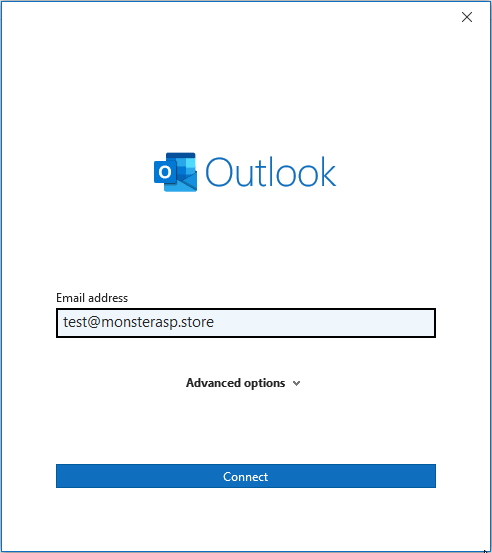
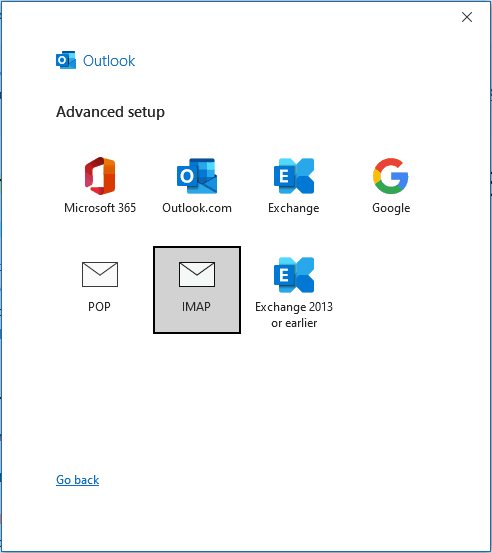
Choose manual configuration with IMAP
Choose to set up the account manually and select IMAP as the server type.
Enter the server settings
In the IMAP Account Settings window enter:
Server Port Encryption method Incoming mail (IMAP) mailXXX.mailasp.net993SSL/TLS Outgoing mail (SMTP) mailXXX.mailasp.net465SSL/TLS Replace
mailXXXwith the server name from the Control Panel.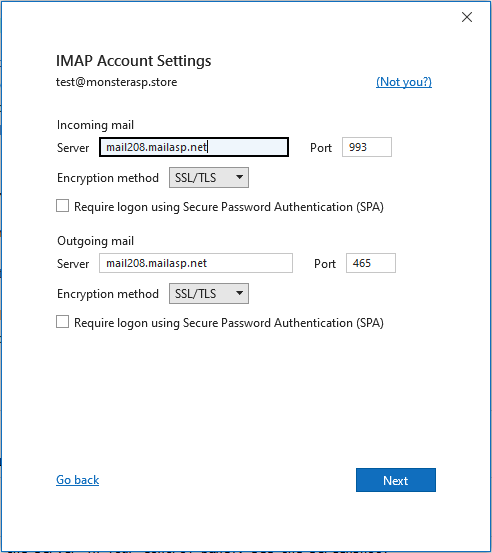
Enter the login details
Use your full e-mail address as the username and the mailbox password as the password. Tick Remember password.
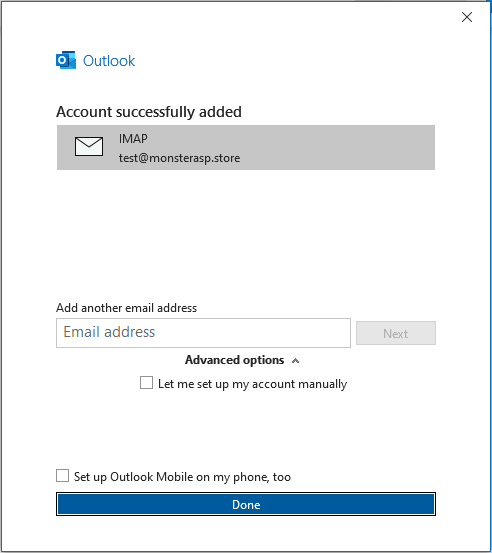
Finish
Confirm the dialog. Outlook tests the settings and adds the account.
Turn on SMTP authentication
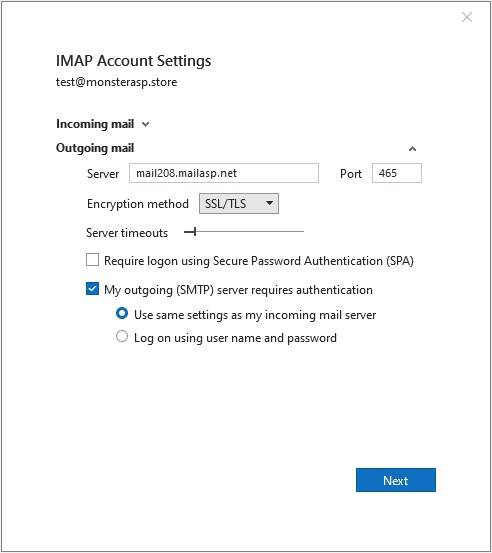
Our SMTP server always requires authentication. If Outlook shows a More Settings button during the setup, check these options:
Open More Settings
Click More Settings and go to the Outgoing Server tab.
Enable authentication
Tick My outgoing server (SMTP) requires authentication and select Use same settings as my incoming mail server.
Confirm
Click OK and then Next. Outlook tests the settings.
Test the account
- Send a test e-mail to check that outgoing mail works.
- Send a message to the mailbox from another address to check that incoming mail arrives.
Troubleshooting
If Outlook cannot connect, check the server settings again. Then try to sign in to WebMail with the same e-mail address and password — this tells you whether the address and password are correct.
Tip
Besides SSL/TLS on ports 993 and 465, the mail server also accepts STARTTLS on ports 143 (IMAP) and 587 (SMTP). See IMAP, POP3 and SMTP settings.