Connect to a PostgreSQL database
Connection details for your application, pgAdmin and other clients.
Every PostgreSQL database has two addresses: a local one for websites hosted with us and a public one for connections from outside. All connection details are on the Overview page of the database in the Control Panel (Databases → your database).
Local or remote?
| Where the connection comes from | What to use |
|---|---|
| A website hosted with us | The Local access tab. The database is reached over our internal datacenter network, without going through the public internet. |
| Your computer, another hosting, CI/CD | The Remote access tab with the public hostname. Remote access must be enabled. |
Each tab shows the Server, Port, Login and Password and a ready-made Connection string. Click Show with password to see the real password. The port is 5432 in both cases.
Connect from a hosted website
Copy the connection string from the Local access tab. It is in the Npgsql (.NET) format:
Server=<local server name>;Port=5432;Database=dbXXXX;User Id=dbXXXX;Password=your-password;
For other clients (psql, PHP PDO, JDBC) use the same host, port, database name and login — the values are the same, only the syntax differs.
Connect from your computer
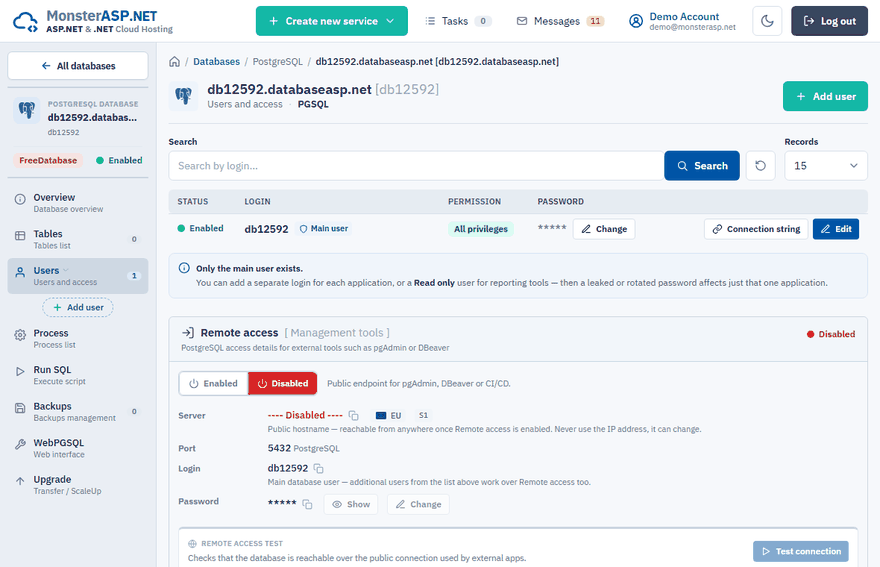
Enable remote access
On the Remote access tab (or in the Remote access panel on the Users page) switch remote access to Enabled. While it is disabled, the public PostgreSQL endpoint is not published in DNS.
Copy the connection details
Use the public hostname from the Server row — it has the form
dbXXXX.public.databaseasp.net— with port5432, the login and the password. Never use the IP address, it can change.Connect with your client
Enter the details in pgAdmin, DBeaver, DataGrip or
psql, and turn on SSL in the client.Test it
Click Test connection in the panel to check that the database is reachable over the public connection.
The remote connection string uses SSL:
Server=dbXXXX.public.databaseasp.net;Port=5432;Database=dbXXXX;User Id=dbXXXX;Password=your-password;Ssl Mode=Prefer;
Important
In pgAdmin set Maintenance database to the name of your database. The default postgres database is not accessible.
Additional users
On the Users page you can click Add user to create a separate login for each application, with the Read+Write or Read only permission. Click Connection string next to a user to get the local and remote strings for that login. Additional users work over remote access too.
No client installed?
Open WebPGSQL from the left menu to work with the database in Adminer, directly in the browser.