Database connection blocked after failed logins
Your IP address is blocked for 24 hours after too many wrong passwords.
Your application or SQL client could connect to the database before, and now every connection from your computer fails — while the database itself works fine. The most likely reason is that our automatic security system blocked your IP address.
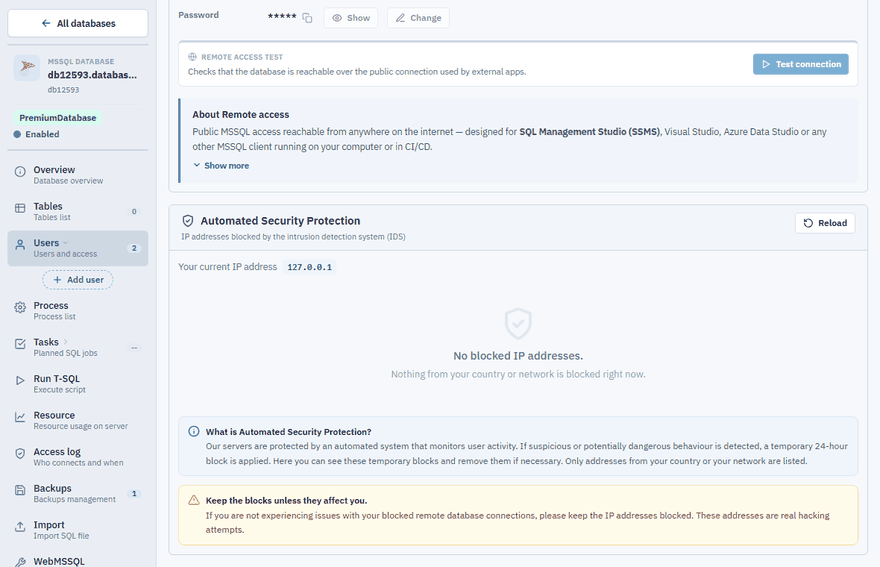
Why it happens
Several attempts to sign in to a database with a wrong login or password look like an attack on the password. To protect your data, the security system then blocks the IP address the attempts came from for 24 hours.
It typically happens when:
- the password was changed in the Control Panel but not in the application,
- a connection string contains a typo,
- an application keeps retrying with wrong credentials in a loop.
Check whether you are blocked
In the Control Panel go to Databases, open your database, choose Users and look at Automated Security Protection. It shows whether a connection was temporarily disabled because of invalid login attempts.
What to do
Fix the credentials first
Copy the correct login and password from the Users page into your application or SQL client. Otherwise you will be blocked again right away.
Remove the block
Click Remove next to your IP address in Automated Security Protection, or simply wait — it expires by itself after 24 hours.
Connect again
Try the connection once more with the corrected credentials.
If you cannot remove the block yourself, open a support ticket and tell us your public IP address (see whatismyip.com).
Note
On the Free plan it is not possible to add an IP address to a whitelist or to switch the protection off.