Use an encrypted connection (SSL/TLS)
Encrypt the connection to SQL Server and fix certificate trust errors.
Whether the connection to your database is encrypted depends on which of the two addresses you use. The connection strings shown in the Control Panel already contain the right settings, so the safest approach is to copy them as they are.
Local and remote connections
| Connection | Encryption | Settings in the connection string |
|---|---|---|
| Local access — from a website hosted with us | Not encrypted. The connection stays inside our datacenter network and does not go through the public internet. | Encrypt=False |
| Remote access — from your computer or another server | Encrypted with TLS. | Encrypt=True; TrustServerCertificate=True |
A remote connection string from the Control Panel looks like this:
Server=dbXXXX.public.databaseasp.net; Database=dbXXXX; User Id=dbXXXX; Password=your-password; Encrypt=True; TrustServerCertificate=True; MultipleActiveResultSets=True;
The certificates of our SQL Servers are not issued by a publicly trusted certificate authority. An encrypted connection therefore always has to use the TrustServerCertificate option.
Warning
For an application that runs on our hosting inside a website we recommend not to use an encrypted connection. The connection between our servers is already secure, and additional encryption can slow the database down.
Where to copy the connection string
Open your database
In the Control Panel go to Databases and open the database.
Open the connection strings
Choose Users and click Connection string next to the login. The window shows one string for Local access and one for Remote access.
Copy the one you need
Click Show with password to see the real password and use the copy icon next to the string.
The same strings are on the Overview page of the database, on the Local access and Remote access tabs.
Note
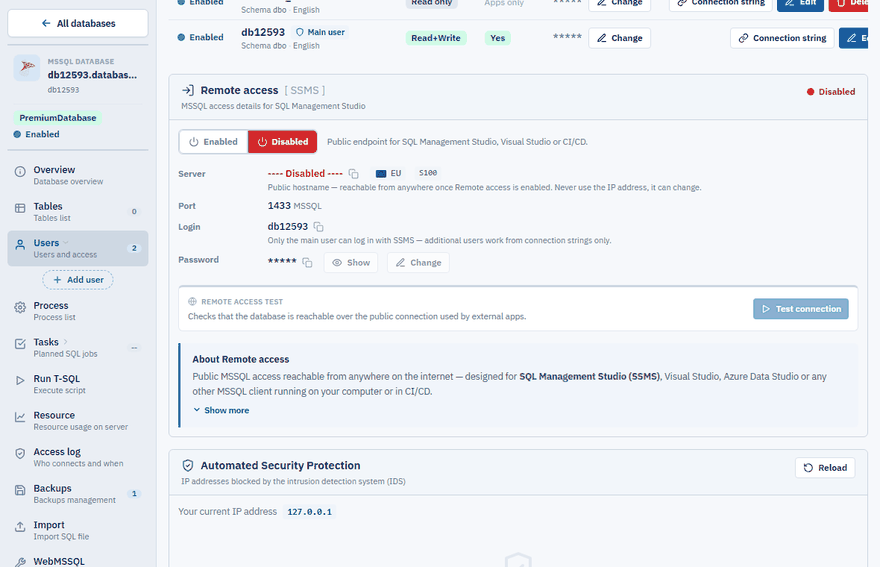
The remote connection string works only when Remote access is Enabled. See Allow remote access to a database.
Fix the certificate trust error
If your application or tool reports "The certificate chain was issued by an authority that is not trusted", the client is encrypting the connection but does not accept the certificate of our SQL Server.
- In a connection string add
TrustServerCertificate=True. The connection stays encrypted. - In SQL Server Management Studio tick Trust server certificate in the connection dialog. In older versions click Options in the connection window and on the Connection Properties tab tick both Encrypt connection and Trust server certificate. See Connect with SQL Server Management Studio.
Important
Keep Encrypt=True in every remote connection string. Over the public internet an unencrypted connection would expose your login, password and data.