Connect to a MySQL database
Connection details for your application, MySQL Workbench and other clients.
Every MySQL database has two addresses: a local one for websites hosted with us and a public one for connections from outside. All connection details are on the Overview page of the database in the Control Panel (Databases → your database).
Local or remote?
| Where the connection comes from | What to use |
|---|---|
| A website hosted with us | The Local access tab. The connection stays inside our datacenter network — no TLS needed and the lowest latency. |
| Your computer, another hosting, CI/CD | The Remote access tab with the public hostname. Remote access must be enabled. |
Each tab shows the Server, Port, Login and Password and a ready-made Connection string. Click Show with password to see the real password, and use the copy icons so that you do not mistype anything.
Connect from a hosted website
Copy the connection string from the Local access tab. It is in the format for MySql.Data / MySqlConnector (.NET):
Server=<local server name>; Database=dbXXXX; Uid=dbXXXX; Pwd=your-password;
For PHP (PDO) use the same host, port 3306, database name and login — the values are the same, only the syntax differs.
Click Test connection on the tab to check that the database is online and that the credentials can sign in.
Connect from your computer
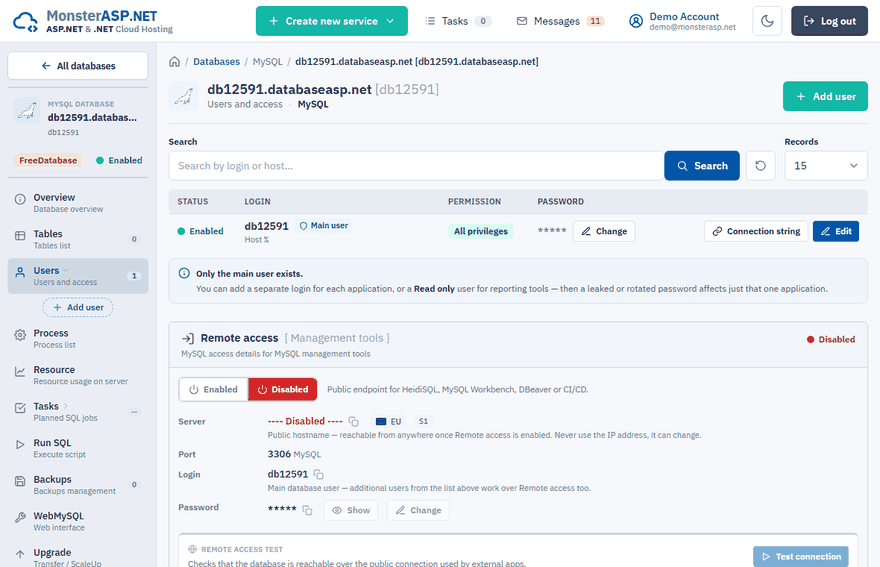
Enable remote access
On the Remote access tab (or in the Remote access panel on the Users page) switch remote access to Enabled. When it is disabled, the public MySQL endpoint refuses connections.
Copy the connection details
Use the public hostname from the Server row — it has the form
dbXXXX.public.databaseasp.net— with port3306, the login and the password. Never use the IP address, it can change.Connect with your client
Enter the details in HeidiSQL, MySQL Workbench, DBeaver or another MySQL client, and turn on SSL in the client.
Test it
Click Test connection in the panel to check that the database is reachable over the public connection.
The remote connection string uses TLS:
Server=dbXXXX.public.databaseasp.net; Database=dbXXXX; Uid=dbXXXX; Pwd=your-password; SslMode=Preferred;
Additional users
On the Users page you can click Add user to create a separate login for each application, with the Read+Write or Read only permission. Click Connection string next to a user to get the local and remote strings for that login. Additional users work over remote access too.
No client installed?
Open WebMySQL from the left menu to work with the database in phpMyAdmin or Adminer — no remote access needed.