Check who connects to your database
Review logins, IP addresses and applications in the Access log.
The Access log shows who connects to your database: which login, from which IP address and computer, with which application, and when it was last active. Use it as a security check, or to find out which application still uses an old login.
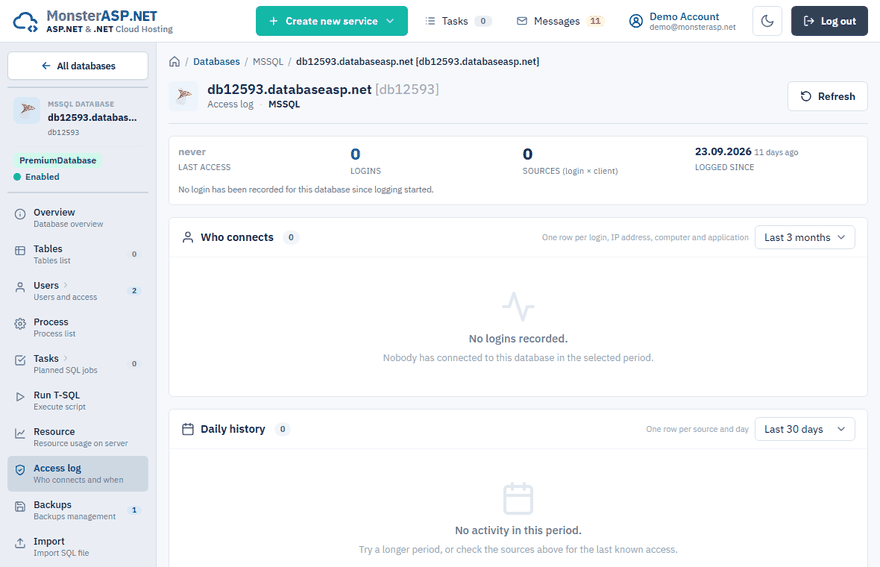
Open it in the Control Panel: Databases → your database → Access log.
What the page shows
| Panel | Content |
|---|---|
| Who connects | One row per login, IP address, computer and application. |
| Daily history | One row per source and day. |
Entries are grouped per day, so a client that connects a thousand times a day is still one row. Both panels can show the last 7 days, 30 days or 3 months.
The Client column tells where a connection came from:
- Hosted website — a website on our internal network.
- You — your current IP address, for example SSMS on your computer.
- SQL server (local) — a job or WebMSSQL running on the server itself.
- An external address, shown with its country.
When something looks wrong
A login you do not recognize, or a connection from a country you never work from, is a reason to act:
Change the password
Open Users, click Change next to the login and set a new password. Update your applications afterwards.
Review remote access
On the Users page check the Remote access panel. If you do not connect from outside, switch it to Disabled.
Good to know
- Backups, maintenance and our management tools connect with system accounts and are not listed.
- You can browse the last 3 months. Logged since shows when recording started on the server — earlier activity is unknown, not absent.
- If the page says that access logging is not active on the database server yet, the history appears once logging is enabled there.