Add database users
Create a separate login for each application or a read-only user, and change passwords.
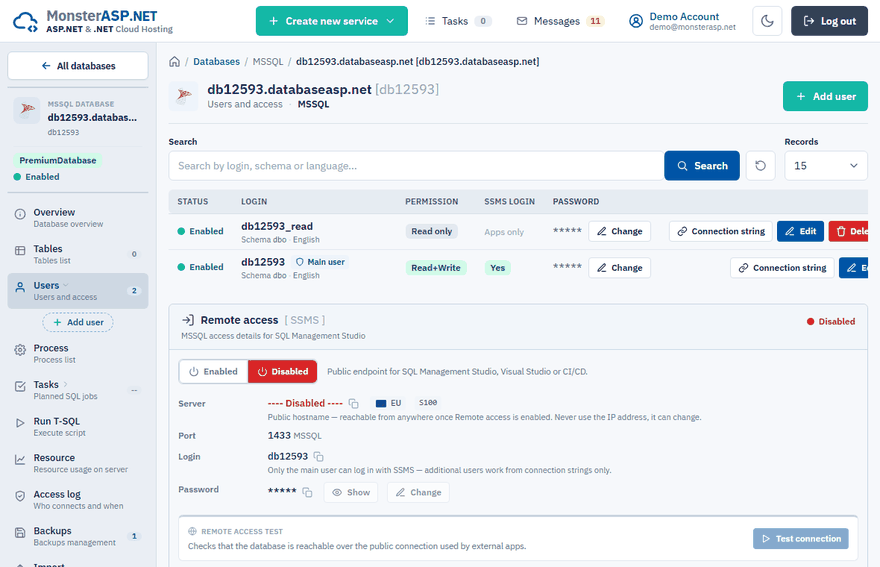
Every database has a main user that is created with it. You can add more logins — one for each application, or a read-only one for a reporting tool — so that a leaked or changed password affects just that one application.
Add a user
Open the Users page
In the Control Panel go to Databases, open your database and choose Users in the left menu.
Add the user
Click Add user and type the Login. Only letters and digits are allowed; the database ID is added as a prefix automatically.
Set the password
Type a Password of at least 8 characters, or click Generate to get a strong one.
Choose the language and permission
Language is the default language of the login; it affects date formats and system messages. For Permission choose Read+Write or Read only.
Save
Click Add user.
Important
Additional users cannot log in with SQL Server Management Studio. Use them only in the connection strings of your applications; for SSMS use the main database user.
Get the connection string of a user
Click Connection string next to the user. The window shows ready-to-use strings for Local access and Remote access; click Show with password to include the real password. See Find your connection string.
Change a password
Click Change next to the user, enter a new password or click Generate, and confirm with Save password. Update the connection strings of your applications afterwards — repeated logins with the old password get your IP address blocked.
Edit or delete a user
Edit lets you change the Language and the Permission; each setting is saved separately. The permission of the main database user cannot be changed — it always has full access. Delete removes an additional user.