Create a PostgreSQL database
Add a PostgreSQL database in the Control Panel; its main user is created automatically.
A PostgreSQL database is created with the same wizard as any other database in the Control Panel. The main database user is created together with the database.
Note
PostgreSQL is offered as Beta in the Control Panel.
Create the database
Start the wizard
Sign in to the Control Panel, go to Databases and click Add database.
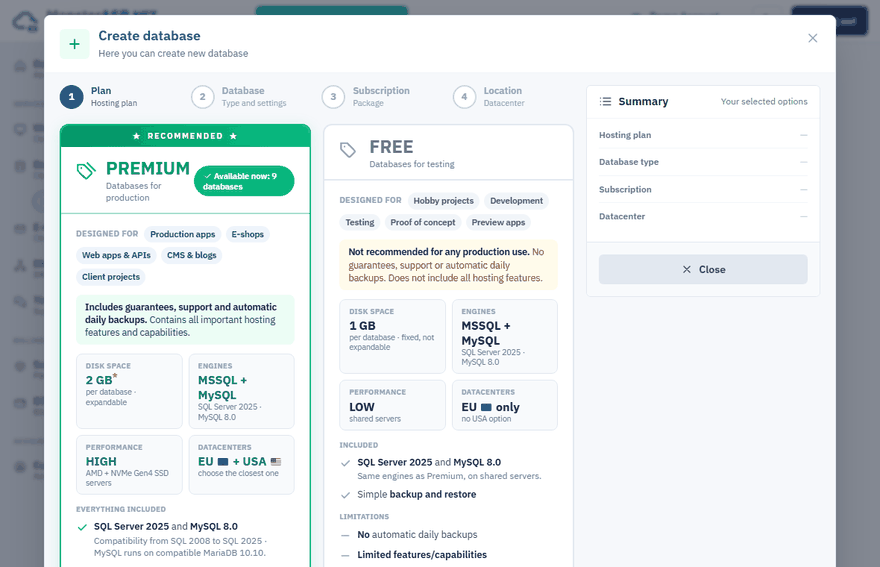
Choose the plan
Click Select PREMIUM database or Select FREE database. Premium needs a free database slot in one of your subscriptions; if you have none, you are taken to order a subscription or add capacity first.
Choose the database type
Select PostgreSQL 18 and click Continue. There are no further settings for a PostgreSQL database.
Choose the subscription (Premium only)
Pick the subscription whose database slot should be used and click Continue. For a Free database this step is skipped.
Choose the datacenter
Pick the location closest to the application that will use the database — ideally the same datacenter as your website. The USA datacenter is not available for the Free plan.
Create the database
Click Create Database. The database is prepared in the background and appears in your Databases list within a few moments.
After the database is created
Click the database in the Databases list to open its management pages. The Overview page shows the server name, login, password and connection strings, together with the Encoding, Connection limit and Disk limit of the database.
The left menu takes you to:
| Page | What it is for |
|---|---|
| Tables | The list of tables. |
| Users | Logins of the database and the Remote access switch. |
| Process | The list of open connections. |
| Run SQL | Run a script in the browser. |
| Backups | Create, download, upload and restore backups. |
| WebPGSQL | The Adminer web interface. |
Add more users
To give each application its own login, open Users and click Add user. A user can have the Read+Write or the Read only permission; read only is handy for reporting tools or a second application that must not change data. The new user gets access to this database only.