Increase the disk space of a database
Check how much space a database uses and add more when it is full.
Every database has a disk limit. When the limit is reached the database can no longer grow, and inserts or updates start to fail.
Check the current usage
In the Control Panel go to Databases and open your database. The Overview page shows the Disk limit and how much of it is used.
Add more space (Premium)
Open the database
Go to Databases and open the database that needs more space.
Increase the disk limit
On the Overview page click Increase next to Disk limit and follow the wizard.
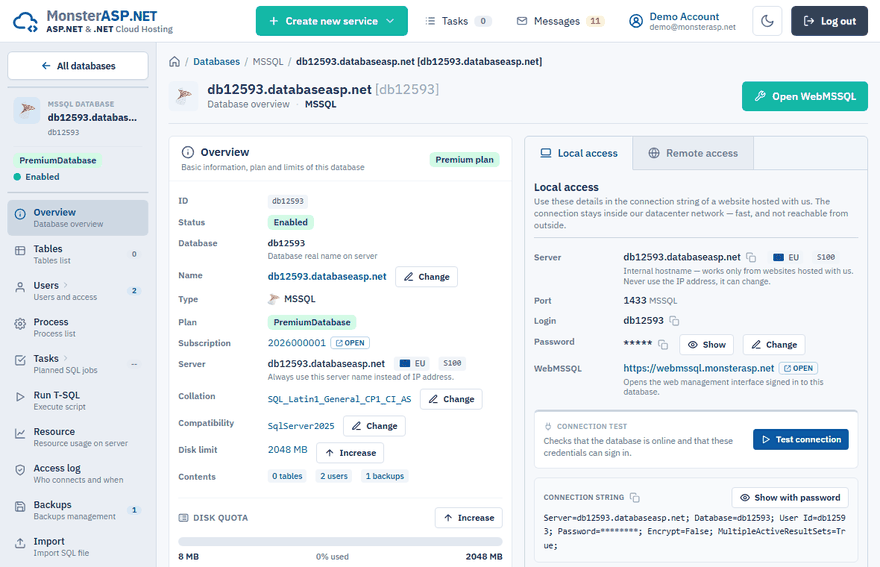
Space is added in steps of 2 GB, up to a maximum of 50 GB per database. Each +2 GB costs $1 per month; see the price list for current prices.
Free plan
A Free database is limited to 1 GB and this limit cannot be increased. A database that grows over the limit is suspended. If you need more space, upgrade to Premium.
Why the size did not go down after deleting data
SQL Server does not return disk space immediately when rows are deleted. The database files keep their size and the freed space is reused for new data. This is by design: growing and shrinking the files with every change would be slow and would fragment the data.
So after deleting data the reported size may stay the same, while the database can again accept new rows. If you have permanently freed a lot of space, you can return it with Shrink logs and Shrink data in the Database files panel on the Tables page of the database.
Tips to save space
- Do not store files (images, documents) in the database — keep them on disk and store only the path.
- Delete or archive old log and audit tables regularly.
- Remove indexes you do not use.