Manage DNS records
Add, edit and delete A, AAAA, CNAME, MX, NS, SRV, TXT, CAA and other records.
Once a domain has a DNS zone in the Control Panel, you can add, edit and delete its records yourself. If you do not have a zone yet, start with Add a DNS zone.
Important
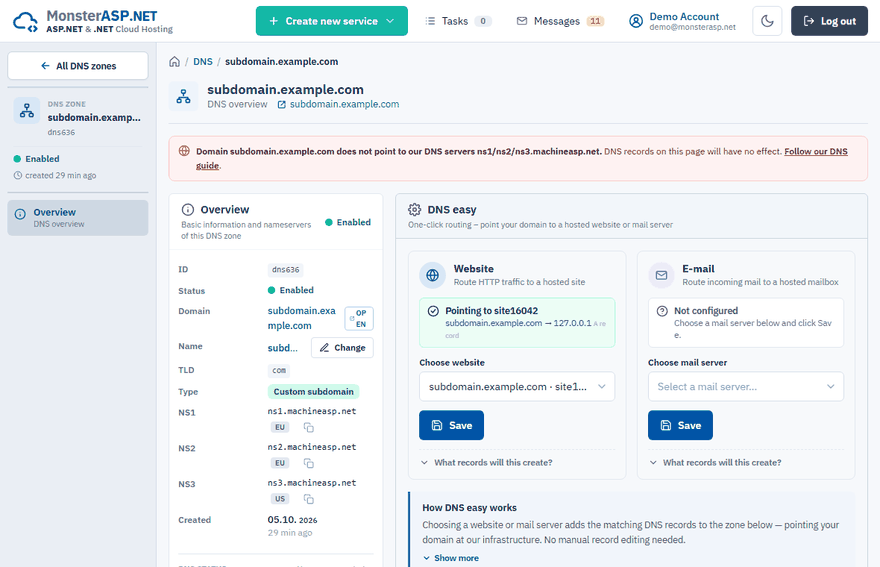
Records take effect only after the nameservers of the domain point to ours. Check the DNS status card on the zone page.
Open the records of a zone
Sign in to the Control Panel, choose DNS and click Manage on the row of your domain. The DNS records card lists all records of the zone. You can filter the list by Type and search by name or value.
Tip
To point the domain to a hosted website or mail server, use the DNS easy card above the list — it sets the right records for you.
Add a record
Start adding
Click Add record in the DNS records card.
Choose the type
Select the record Type. The dialog shows an example for the selected type and only the fields that type needs.
Fill in the fields
Enter the Name without the domain — the domain is appended for you. Leave it empty or type
@for the domain root. Fill in Value and the other fields.Save
Click Add record.
Record types and their fields
Every record has a Name, a Type, a TTL and a Value. Some types have extra fields.
| Type | Extra fields | Example name | Example value |
|---|---|---|---|
| A | – | www |
An IPv4 address |
| AAAA | – | mail |
An IPv6 address |
| CNAME | – | www |
alias.example.com |
| MX | Priority | (empty) | mx.example.com |
| NS | – | sub |
ns.example.com |
| SRV | Priority, Weight, Port | _sip._tcp |
sip.example.com |
| TXT | – | (empty) | some text here |
| CAA | Flag, Tag | (empty) | letsencrypt.org |
| TLSA | Usage, Selector, Match type | _443._tcp |
The certificate hash |
| SSHFP | Algorithm, Fingerprint type | server |
The key fingerprint |
Good to know:
- TTL is in seconds — how long resolvers may cache the record. The default is
1800. - Value is always required. The extra fields (priority, weight, port, flag and so on) must be numbers.
- An NS record can be added only for a subdomain, not for the domain root.
- For SRV the name has the form
service.protocol, for TLSA the formport.protocol.
Edit a record
Click Edit on the row of the record, change the values and click Save changes.
The record type cannot be changed. To switch it, delete the record and add a new one.
Delete a record
Click the delete icon on the row of the record and confirm with Delete record. The record is removed from our nameservers and stops resolving within minutes. This cannot be undone.
How long changes take
Changes propagate in 5–60 minutes. The TTL of a record says how long resolvers may keep the previous value in their cache.