HTTP Error 500 - the application failed to start
How to find out why your application returns error 500 or 500.30, and the most common causes.
An HTTP 500 error (including 500.30 – ASP.NET Core app failed to start) means that your application ran into an internal error: the server is working, but your code threw an exception it did not handle. The exact reason is always written in the logs.
Quick check: the server screenshot
A browser often shows only a general error message. The Overview page of your website in the Control Panel contains a preview — a screenshot of the website taken on the server, where the detailed error is usually visible. Click the screenshot to open it in full size.
A typical example is an error pointing to web.config with invalid characters at the beginning of the file. They get there when the file is edited improperly, for example in Notepad. To fix it, open WebFTP from the Control Panel, go to wwwroot, right-click web.config and choose Edit, delete the unwanted characters and save the file. Then go back to the Overview page and click Reload on the screenshot to check the result.
Step 1: Read the website logs
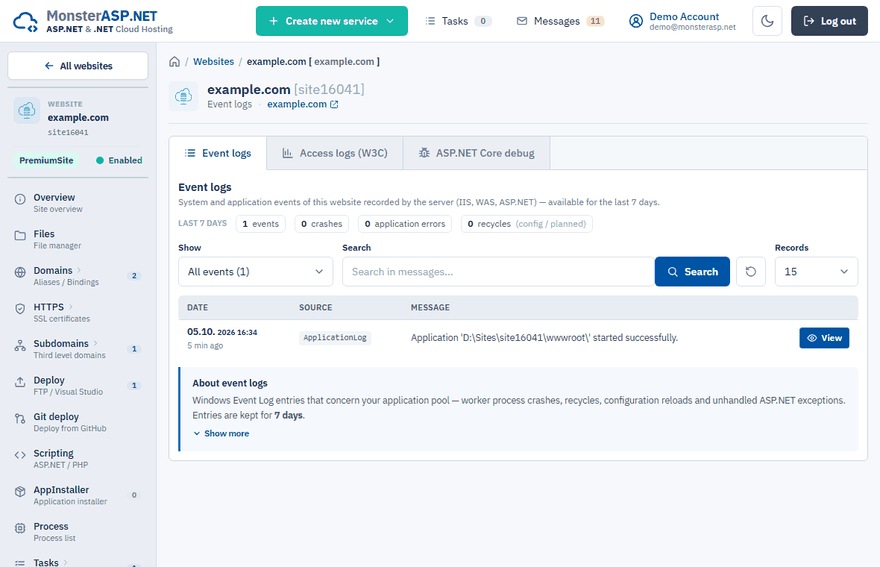
Open the logs
In the Control Panel go to Websites, open your website and choose Logs.
Find the Application Error entry
Look for an Application Error entry from the time the error happened and click it to see the details.
Read the exception
The detail contains the exception message and usually the first part of your application's output. In most cases this is enough to see what is wrong.
Step 2: Turn on debug logging
If the log entry does not say enough, enable detailed logging for the application as described in Turn on ASP.NET Core debug logging, reproduce the error and read the new log.
The most common causes
appsettings.json cannot be parsed
System.IO.InvalidDataException: Failed to load configuration from file '...\wwwroot\appsettings.json'.
 ---> System.FormatException: Could not parse the JSON file.
The file contains invalid JSON. Typical reasons are a missing quotation mark or comma (often in the connection string), a file that was uploaded empty, or a file saved by an editor that changed its encoding. Fix the file, validate it with any JSON validator and upload it again.
The website is set to a different .NET version
New websites are set up for modern .NET (.NET 8 and newer). If your application was built with the older .NET Framework (ASP.NET Web Forms, MVC 5, Web API 2), switch the website to the version it needs under Scripting → ASP.NET Version. See Choose the .NET and PHP version.
The application was not uploaded completely
A JSON parsing exception occurred in [...\wwwroot\YourApp.deps.json]: The document is empty.
Messages about a missing or empty .deps.json, .runtimeconfig.json or a missing DLL mean the upload was interrupted or incomplete. Publish the application again — Web Deploy from Visual Studio is the most reliable way.
hostpolicy.dll was not found
The library 'hostpolicy.dll' required to execute the application was not found.
Failed to run as a self-contained app.
The uploaded .runtimeconfig.json does not match the way the application was built. Publish the whole output folder again (not individual files) so that all generated files belong to the same build.
The database connection fails
A wrong connection string is one of the most frequent startup errors. Use the connection string shown in the Control Panel — see Find your connection string and Cannot connect to the database.
Files are in the wrong folder
The application must be in the wwwroot folder of the website. See HTTP Error 403.
Tip
When you open a support ticket about an error 500, include the text of the Application Error log entry. It lets us help you much faster.