View and kill database sessions
See open connections and disconnect a stuck application.
The Process page lists every open connection (session) to your database. Use it to see what is running right now, and to disconnect a stuck application that holds locks or blocks a restore.
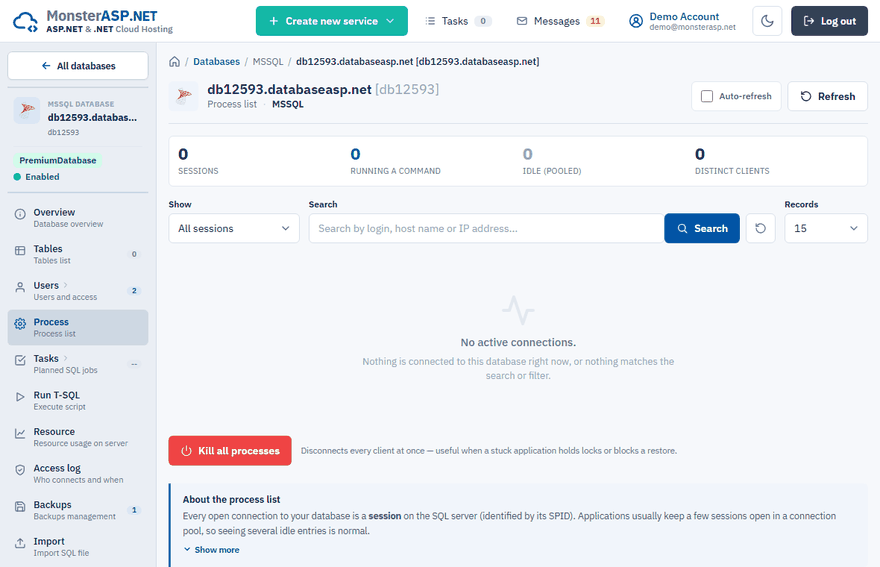
Open it in the Control Panel: Databases → your database → Process.
Read the list
Applications usually keep a few sessions open in a connection pool, so several idle entries are normal.
- AWAITING COMMAND means an idle pooled connection. It does no work and is harmless.
- Long-running commands such as
SELECT,UPDATEorBACKUPindicate real activity; those rows are highlighted.
The Client column tells where the connection comes from: Hosted website (our internal network), You (your current IP address, for example SSMS) or an external address with its country.
Use the Show filter to display only sessions that are Running a command or Idle (pooled). The list is a snapshot — click Refresh, or switch on Auto-refresh to reload it every 10 seconds.
Kill a session
Click Kill next to a session. The running transaction of that session is rolled back and the client is disconnected. A well-behaved application reconnects automatically; a stuck one gets unblocked.
Kill all processes disconnects every client at once.
Tip
Restore and import jobs need an empty list. If such a job reports that the database is in use, kill the sessions first and start the job again.