Connect with SQL Server Management Studio
Connect to your database remotely from SSMS.
SQL Server Management Studio (SSMS) is Microsoft's free tool for working with SQL Server databases. You can use it to manage your hosted database from your own computer.
Before you start
- Install SSMS on your computer. The latest version can be downloaded from the Microsoft website.
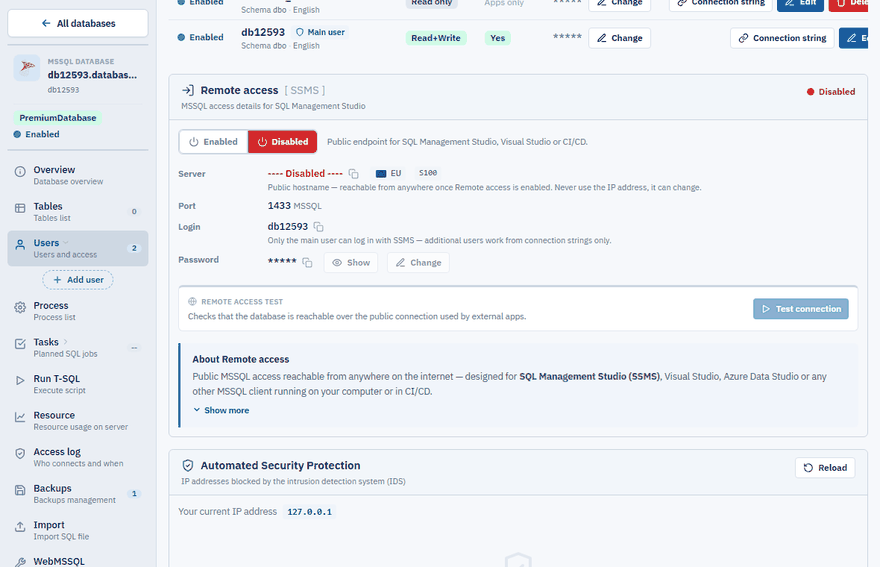
- Remote access must be enabled for your database. It is disabled by default.
- Have the public server address, login and password from the Control Panel ready (Databases → your database → Users → Remote access).
- Sign in as the main user of the database. Additional users work from connection strings only and cannot open the database in SSMS.
Connect
Open the Connect to Server dialog
Start SSMS. The dialog opens automatically, or choose File → Connect Object Explorer.
Fill in the connection
Field Value Server name The public server address, for example dbXXXX.public.databaseasp.netAuthentication SQL Server Authentication Login Your database login Password Your database password Trust the server certificate
Tick Trust server certificate. In older versions of SSMS you find it under Options → Connection Properties.
Connect
Click Connect. Your database appears under Databases in Object Explorer.
Warning
Type the login and password carefully, or copy them from the Control Panel. After several failed attempts your IP address is blocked for 24 hours.
Be careful with DROP and DELETE
Your database user has full permissions to the database, including the right to delete it. Choosing Delete on the database in Object Explorer, or running a script that contains DROP DATABASE, removes the database from the server. See Database disappeared or was deleted.
Cannot connect?
Go through the checklist in Cannot connect to the database.