ASP.NET Core hosting models
In-process and out-of-process hosting, how to switch, and the Load user profile setting.
An ASP.NET Core application runs behind the IIS web server. The hosting model decides whether your application runs inside the IIS worker process or as a separate child process.
| Hosting model | How it works | Supported |
|---|---|---|
| InProcess | The default model for ASP.NET Core on IIS. The application runs directly inside the IIS worker process (w3wp.exe) and shares its memory space. Best performance and lowest request latency. |
Yes — recommended. Works whether the application is started as a DLL or as an EXE. |
| OutOfProcess | The application runs as a separate process outside IIS, and IIS forwards (reverse-proxies) every request to its Kestrel server. | Only with the DLL runtime |
Important
OutOfProcess is supported only with the DLL runtime, that is when the application is started through dotnet and its .dll. A custom EXE runtime in OutOfProcess mode is not supported: the application is suspended after startup with the error Application Pool is disabled, and you have to open a support ticket to have it enabled again.
Switch the hosting model
Open Scripting
Sign in to the Control Panel, go to Websites, select your website and choose Scripting in the left menu.
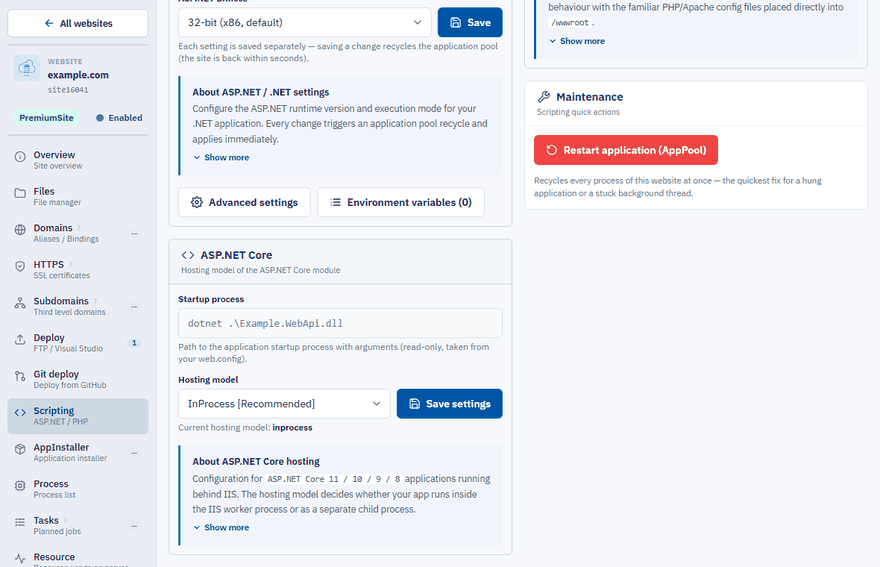
Find the ASP.NET Core card
The ASP.NET Core card shows the Startup process of your application and the Current hosting model.
Choose the model
Select InProcess or OutOfProcess in the Hosting model list.
Save
Click Save settings.
Note
The hosting model settings appear only after you publish an ASP.NET Core application. Until then the page shows No ASP.NET Core application detected, because the settings are read from the aspNetCore section of the application's web.config.
The Startup process — the path to the application startup process with its arguments — is shown read-only. It is taken from your web.config. To change it, edit web.config, the publish settings in Visual Studio or your .csproj file.
Set the hosting model in your project
The value you see in the Control Panel is read from the web.config of the published application, so you can also set it in the project and publish again. Open the .csproj file and change OutOfProcess to InProcess:
<PropertyGroup>
  <AspNetCoreHostingModel>InProcess</AspNetCoreHostingModel>
</PropertyGroup>
In the published web.config it appears as the hostingModel attribute:
<aspNetCore processPath="dotnet" arguments=".\MyApp.dll" hostingModel="inprocess" />
Load user profile
On the same page, Advanced settings in the ASP.NET / .NET card contains the Load user profile switch. It tells IIS whether to load the Windows user profile when the application pool starts.
- Disabled is the recommended default — faster startup and no functional impact for most applications.
- Enabled is typically needed when your application loads a
.pfxcertificate (for example withX509Certificate2) to authenticate against a third-party API with mutual TLS — a payment gateway, a banking API or a government service. Windows needs the user profile to access the user certificate store.
Loading the user profile slows down the start of the application, so every recycle takes noticeably longer. Enable it only if your application really requires it.