Sync your calendar with Outlook
Keep your server calendar in sync with Microsoft Outlook.
Our mail server (SmarterMail) includes a calendar. You can connect it to Microsoft Outlook, so that changes made in Outlook are saved to the calendar on the server. The connection is started from WebMail.
Connect the calendar
Open the calendar in WebMail
Sign in to WebMail at webmail.monsterasp.net and go to the Calendar tab.
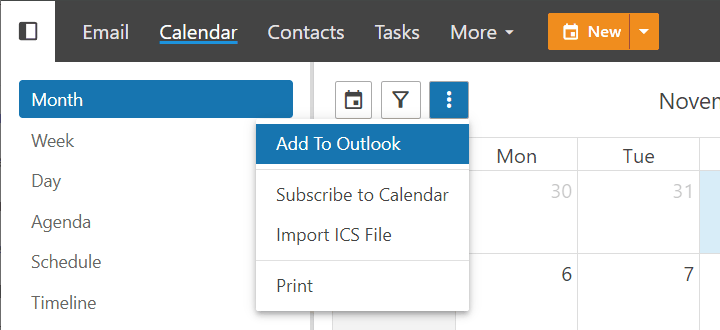
Choose Add to Outlook
Click the three-dot menu and select Add to Outlook.
Allow the browser to open Outlook
The browser asks for permission to open Outlook. Allow it.
Confirm in Outlook
Outlook asks whether to Connect this SharePoint Calendar to Outlook. Click Yes.
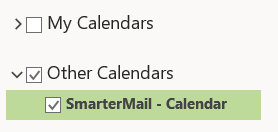
The calendar then appears in Outlook under Other Calendars, and changes you make in it are propagated to the calendar on our mail server.
Tip
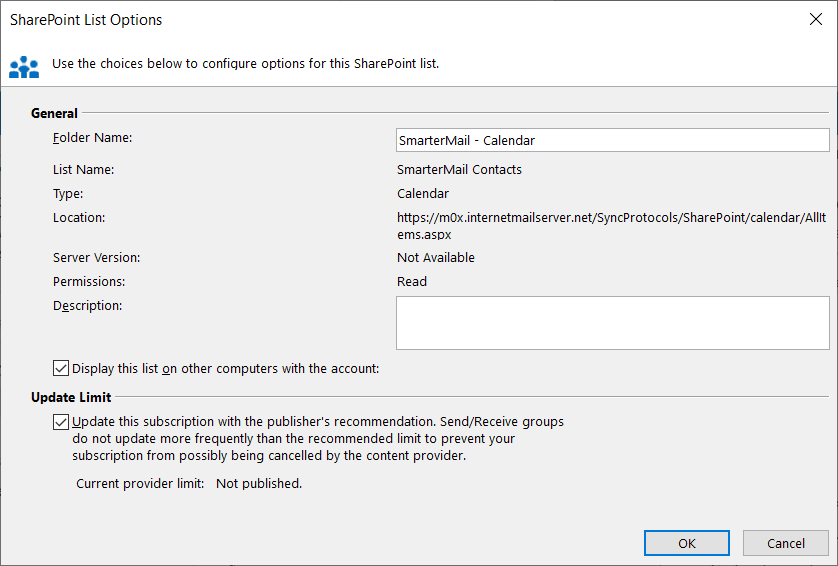
Before you click Yes, you can click Advanced... to change how the calendar syncs between devices or to rename the folder.
When does the calendar sync?
The calendar is synchronised in the same way as your e-mails — when you click Send/Receive All Folders in Outlook.