Deploy from a GitHub repository
Connect a repository in the Control Panel and deploy your website from a branch.
Git deploy connects a GitHub repository to your website. You pull the latest commit and publish it to the live site from the Control Panel — and if the project needs a build, our server runs it for you.
Connect the repository
Open Git deploy
Sign in to the Control Panel, go to Websites, select your website and choose Git deploy in the left menu.
Enter the repository
Fill in GitHub repository URL with the HTTPS clone URL of the repository. It must end with
.git.Add a token and choose the branch
For a private repository paste a Personal access token — see Create a GitHub personal access token. Public repositories do not need one. Click Load to list the branches and select the Branch to deploy.
Choose the deployment type
Pick one of the types from the table below.
Enable
Click Enable Git deploy.
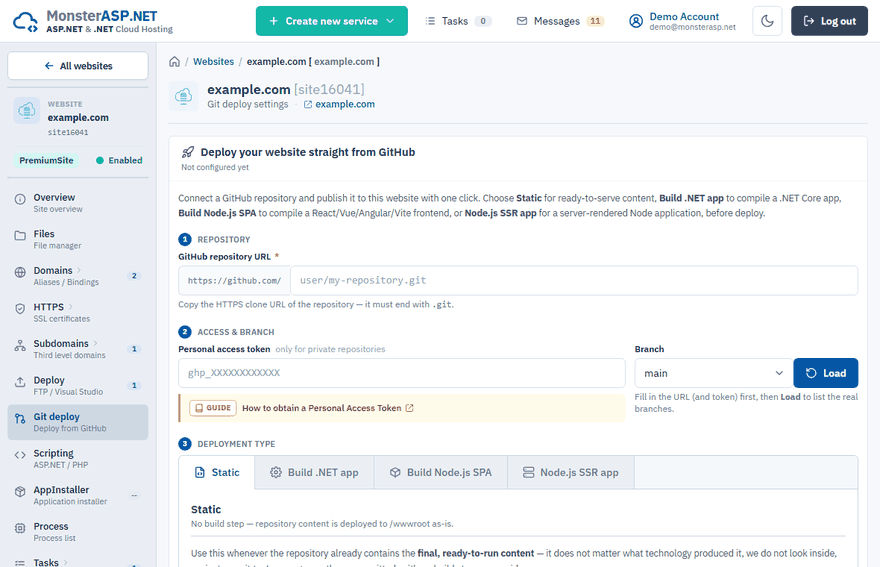
Enabling does not touch your live site. The repository is cloned into a staging area outside your site and /wwwroot stays as it is until you publish.
Deployment types
| Type | Use it for | What happens |
|---|---|---|
| Static | Content that is ready to run as committed: HTML/CSS/JavaScript, PHP, or an application you built yourself before pushing. | The repository content is copied to /wwwroot as-is, with no build step. |
| Build .NET app | .NET / ASP.NET Core projects (.sln / .csproj). |
The server runs dotnet publish and deploys only the compiled output. |
| Build Node.js SPA | React, Vue or Angular front ends (Vite, Create React App, Angular CLI). | The server runs npm install and npm run build and deploys the Build output folder (for example dist or build). |
| Node.js SSR app | Next.js, Nuxt, Nest.js, Express or Fastify. | The server builds the application, deploys it including node_modules and generates the web.config that starts your Node process. |
For both Node.js types the repository must contain a package.json with a "build" script. For Node.js SSR app the Start command is detected automatically after the first build; you can override it at any time. If a repository contains several projects, you choose which one to build and deploy.
Deploy
Pull the latest commit
In the Deploy card click Pull latest. It fetches the latest commit of the branch from GitHub.
Publish
For Static click Publish. For the build types click Build & publish in the Build & Publish card; the result appears under Recent builds.
Publishing copies the content to /wwwroot. Existing files that are not tracked by the repository, such as uploads or App_Data, are left untouched.
Protected files
If the repository contains a configuration file with development values, list it under Protected files — one path per line, relative to /wwwroot. A plain path such as appsettings.Production.json protects one file, a path ending with / such as uploads/ protects the whole folder. Once such a file exists on the live site, a deploy never overwrites it again. The very first deploy still copies it in as usual.
Automatic deploy on push (Premium)
On a Premium website you can switch Deploy on push to Enabled. Every push to the selected branch is then deployed automatically through a GitHub webhook; pushes to other branches are ignored. Manual pull and publish keep working on the Free plan.
Add a webhook on GitHub
Open the repository on GitHub → Settings → Webhooks → Add webhook.
Copy the values
Copy Payload URL and Secret from the Control Panel and set Content type to
application/json. The defaultapplication/x-www-form-urlencodedis not supported.Save
Choose Just the push event and click Add webhook. GitHub sends a test ping; check the result under Last delivery.
Reset or disconnect
In the Danger zone, Reset (hard) resets the staged repository to the remote branch and discards local changes in it. Disable Git deploy removes the repository link from the website — your files stay.