Sync your contacts with Outlook
Keep your server contacts in sync with Microsoft Outlook.
Our mail server (SmarterMail) stores the contacts of your mailbox. You can connect them to Microsoft Outlook, so that you have the same contacts in both places. The connection is started from WebMail.
Connect your contacts
Open the contacts in WebMail
Sign in to WebMail at webmail.monsterasp.net and go to the Contacts tab.
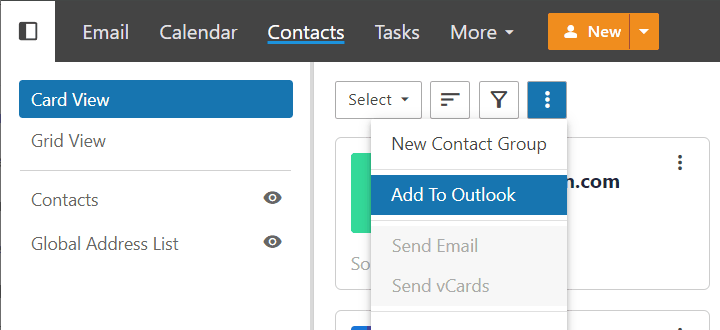
Choose Add to Outlook
Click the three-dot menu and select Add to Outlook.
Allow the browser to open Outlook
The browser asks for permission to open Outlook. Allow it.
Confirm in Outlook
Outlook asks whether to connect this SharePoint contacts list to Outlook. Click Yes.
The contact list then appears in Outlook under Other Contacts.
Tip
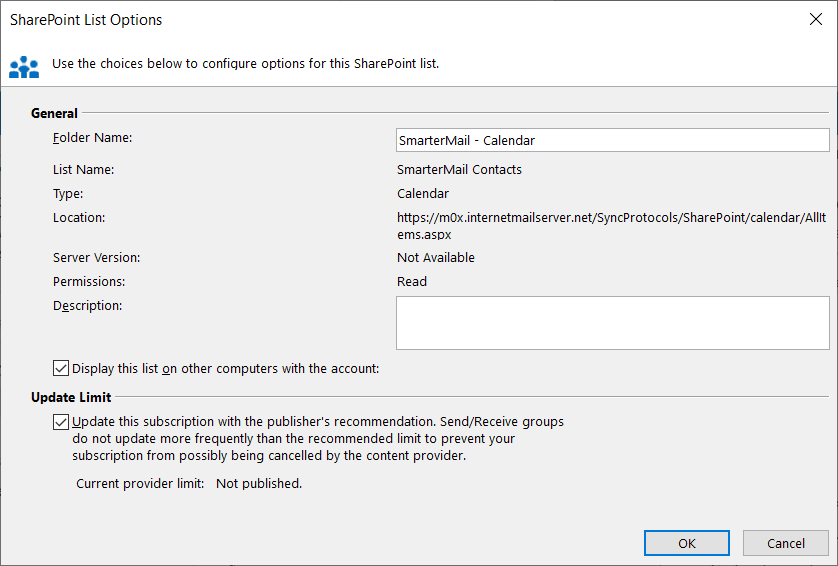
Before you click Yes, you can click Advanced... to change how the contacts sync between devices or to rename the folder.
Show the contacts in the Outlook address book
By default the synced contacts are not offered in the address book when you write a new message. To add them:
Open the properties of the contact list
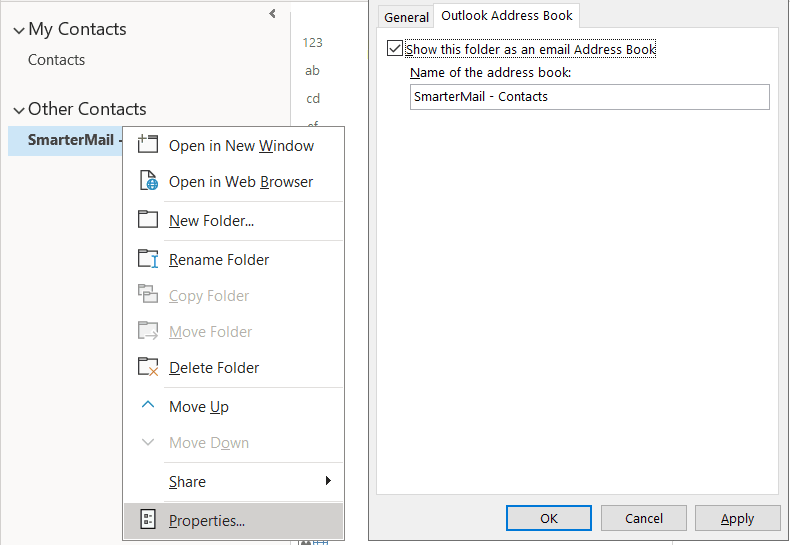
In Other Contacts right-click the added contact list and choose Properties.
Enable the address book
Go to the Outlook Address Book tab, tick Show this folder as an e-mail Address Book and click OK.
Sync the Global Address List
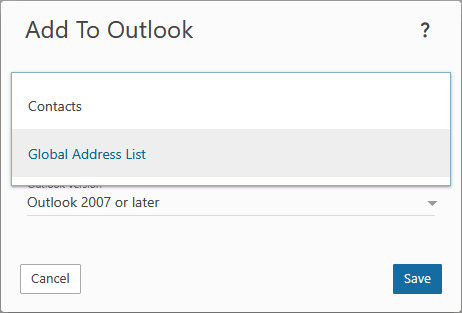
By default only My Contacts of your mailbox are synced. The Global Address List (GAL) contains all e-mail addresses of your domain. To sync it as well, repeat the steps above, but when you click Add to Outlook choose Global Address List.
When do the contacts sync?
The contacts are synchronised in the same way as your e-mails — when you click Send/Receive All Folders in Outlook.