Publish your first application
The shortest path from a project on your computer to a live site: choose a deployment method and go.
Your website exists, now it needs content. There are several ways to get your application from your computer to the server. All of them end in the same place: the \wwwroot folder, the document root of your website.
Everything you need is in the Control Panel under Websites → your website.
Choose a deployment method
| Method | Best for | Where in the Control Panel |
|---|---|---|
| Visual Studio (Web Deploy) | .NET / ASP.NET Core applications published straight from Visual Studio. Only changed files are uploaded. | Deploy → Visual Studio access |
| FTP / SFTP | Any content — static sites, PHP (Premium only), and .NET / ASP.NET Core applications that you publish to a folder and upload manually. Works with FileZilla and every other client. | Deploy → FTP / SFTP access |
| ZIP file | Uploading a whole site as one archive from the browser and extracting it on the server. | Files |
| GitHub repository | The best choice for projects kept on GitHub. ASP.NET Core applications, Node.js SPA (React, Vue, Angular) and Node.js SSR applications are built on our server and deployed straight from the repository; static sites are deployed as they are. | Git deploy |
Not sure? If your project is on GitHub, use Git deploy — it builds ASP.NET Core, Node.js SPA and Node.js SSR applications for you. If you develop in Visual Studio, use Web Deploy. For everything else start with FTP / SFTP.
The shortest path from Visual Studio
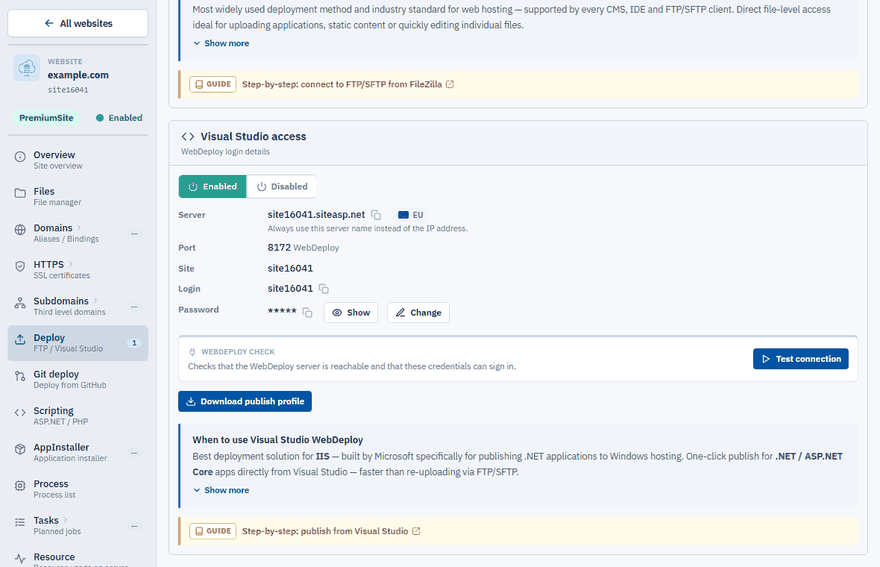
Open the Deploy page
Go to Websites, select your website and choose Deploy in the left menu.
Download the publish profile
On the Visual Studio access card switch WebDeploy to Enabled, click Download publish profile and save the
.publishSettingsfile.Import the profile
In Visual Studio right-click your project, choose Publish → Import profile and select the
.publishSettingsfile.Publish
Click Publish. Your build is deployed directly to the website.
The website is briefly stopped during the publish and restarted automatically.
The shortest path with FTP
Open Deploy and use the Server, Port, Login and Password from the FTP / SFTP access card in your FTP client. Prefer FTPS or SFTP, so that your password and files travel encrypted.
.NET and ASP.NET Core applications can be deployed this way too: publish the project to a local folder first (in Visual Studio with the Folder publish target, or with dotnet publish -c Release) and upload the content of the publish folder.
Important
Upload your files into \wwwroot. Files placed outside this folder are not served by the web server.
Check the result
On the Overview page click Show to open the website in a new tab. The same page has the Start, Stop and Restart quick actions and a preview of the website.
Note
If you pre-installed an example application when you created the website, delete its files before you upload your own application.