Increase the memory (RAM) of a website
See how much memory your website uses and add more RAM when it keeps restarting.
Every website has a memory (RAM) limit. When your application needs more than the limit allows, the server restarts it — which shows up as slow first requests, lost sessions, dropped SignalR connections or occasional 503 errors.
| Plan | Memory limit per website |
|---|---|
| Free | 256 MB |
| Premium | 512 MB by default, can be increased |
Find out whether memory is the problem
Check the logs
In the Control Panel open your website and go to Logs. If the limit was reached you will see this message:
A worker process serving application pool 'siteXXXX' has requested a recycle because it reached its private bytes memory limit.Check the usage
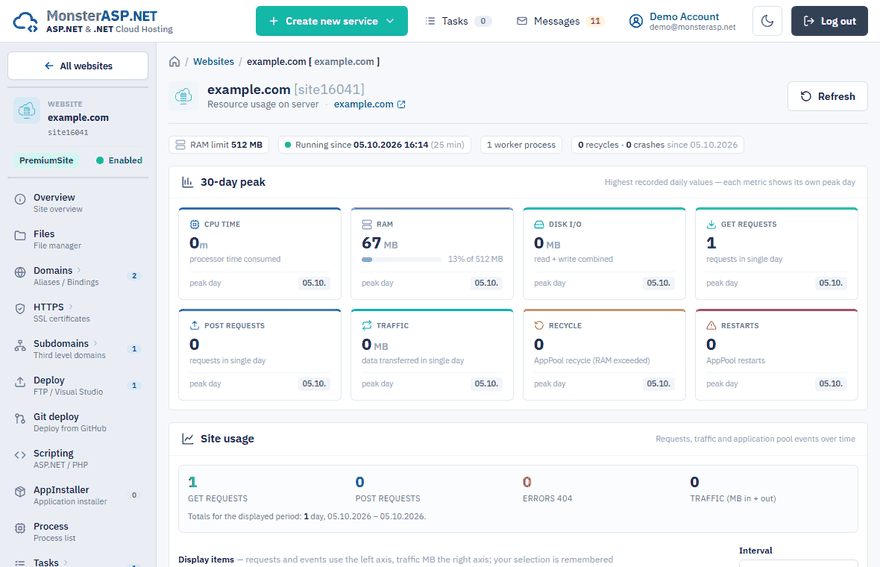
Go to Resource. Look at the peak memory, not only at the average — an application that normally uses 300 MB can briefly jump over the limit while doing something demanding, and that single peak is enough to trigger a restart.
See it live
The Process page shows how much memory the application uses right now.
Increase the memory (Premium)
Open the website
Go to Websites and open the website.
Increase the limit
On the Overview page find Memory limit and click Increase. The Memory limit window opens.
Choose how much to add
Memory is added in 512 MB blocks. Set the number of blocks; the window shows the new total limit and the price.
Pay
Click Pay & add to this website. The new limit is assigned right after the payment.
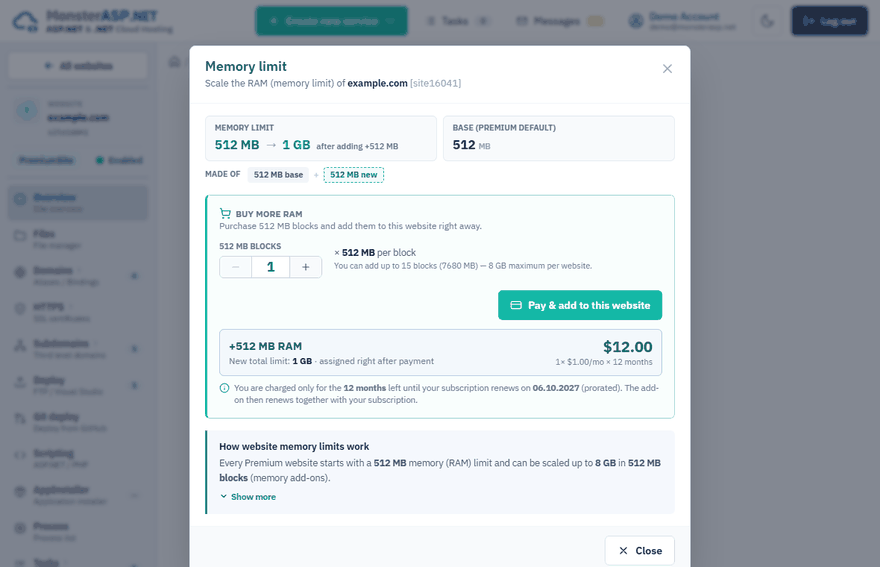
Every Premium website starts with 512 MB and can be scaled up to 8 GB. Each additional 512 MB of RAM costs $1 per month; you are charged only for the months left until your subscription renews, and the add-on then renews together with the subscription. Current prices are on the price list.
On the Free plan the limit cannot be increased. Upgrade to Premium if your application needs more.
Reduce the memory your application needs
More RAM is not always the right answer. Common reasons for high memory usage:
- loading whole tables into memory instead of paging on the database server,
- caching large objects without a size limit or expiration,
- processing big files or images in memory instead of streaming them,
- objects that are never released (event handlers, static collections, undisposed
DbContextorHttpClientinstances).