Work with the File manager
Browse, upload, edit, move and unzip files directly in the browser.
The File manager is a browser for the files of your website, built into the Control Panel. It is designed for quick single actions — create a folder, upload one file, fix a setting in a configuration file, extract a ZIP archive — without starting an FTP client.
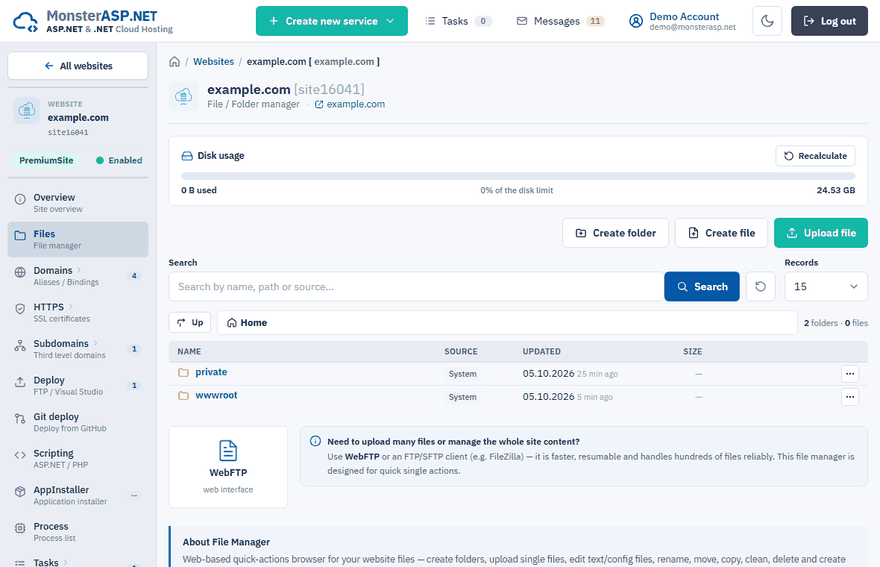
You find it in the Control Panel under Websites → your website → Files.
Tip
Need to upload many files or manage the whole site? Use FTP/SFTP or WebFTP — it is faster, resumable and handles hundreds of files reliably. Or upload the whole project as one ZIP file and extract it on the server.
Browse files
Click a folder row to open it and Up to go one level back. Clicking a file row downloads the file; text files open in the editor and ZIP archives offer Unzip instead.
/wwwroot is the document root of your website — all application files must be inside this folder, otherwise the site will not work. If the folder does not exist, create it with Create folder.
The top of the page shows the Disk usage of the website. Click Recalculate to count it again from the actual files on disk.
Actions
| Action | Where | What it does |
|---|---|---|
| Create folder | Above the list | Creates a new folder in the current location. |
| Create file | Above the list | Creates an empty text or configuration file (for example .txt, .json, .config, .html) and opens it in the editor. |
| Upload file | Above the list | Uploads a single file of up to 2 GB into the current folder. If a file with the same name exists, you are asked before it is overwritten. |
| Download | Row | Downloads the file. |
| Edit | Row | Opens a text or configuration file in the online editor. |
| Unzip | Row of a .zip file |
Extracts the archive into a folder you choose. |
| Rename, Move to…, Copy to… | ··· menu | Renames the item or moves / copies it to another folder. |
| Create ZIP archive | ··· menu | Packs the item into a ZIP file in the background. |
| Clean folder content | ··· menu | Deletes everything inside the folder and keeps the folder itself. |
| Delete | ··· menu | Deletes the file or folder. |
Warning
Delete and Clean folder content cannot be undone.
Edit a file
The online editor is meant for text and configuration files of up to 1 MB, such as web.config or appsettings.json. Press Ctrl+S or click Save file to save. Changes are written directly to the file on the server, so keep a backup of important configuration files before you edit them.
Files locked by the running application
A running application keeps some of its files open (for example DLLs), so they cannot be overwritten, renamed or deleted. The dialogs for deleting, cleaning, renaming, moving and extracting therefore offer the option Restart application pool before…. It stops the application pool of the website first and starts it again automatically afterwards.
ZIP jobs
Creating and extracting ZIP archives runs in the background. The ZIP jobs panel at the bottom of the page shows the progress live. Only one ZIP job can run for a website at a time; further Zip/Unzip actions are disabled until it finishes.