Upgrade Premium Single to Multi
Switch a Single plan to Multi and pay only the price difference.
If you started with Premium Single and need room for more projects, you can switch the plan to Premium Multi. Your services stay where they are — only the plan and its limits change.
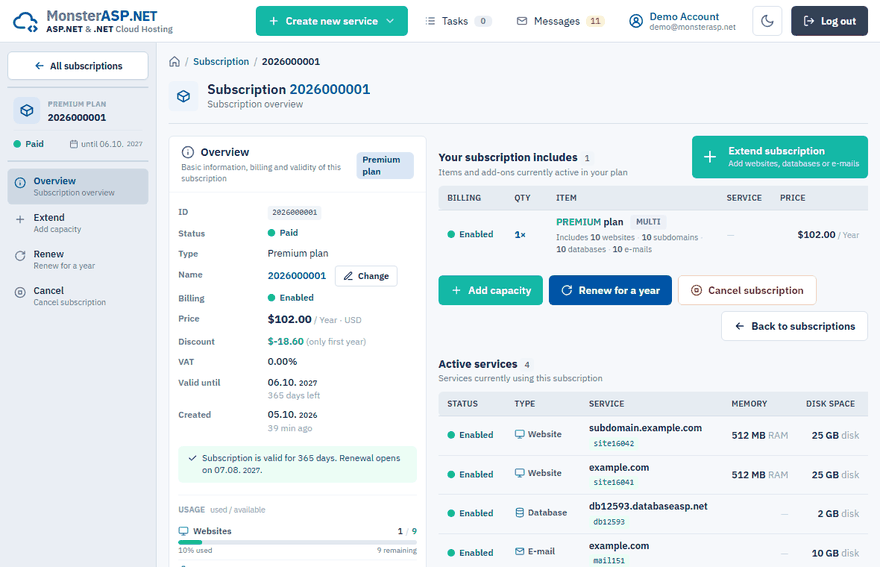
What changes
| Premium SINGLE | Premium MULTI | |
|---|---|---|
| Websites | 1 | 10 |
| Subdomains | 3 | 10 |
| Databases | 2 | 10 |
| E-mail domains | 1 | 10 |
All services and add-ons attached to the Single plan stay assigned to the Multi plan after the upgrade.
What you pay
The upgrade is charged once. You pay only the price difference between Multi and Single for the months remaining in the current subscription period. The wizard shows the exact calculation before you pay.
If your subscription is in its first year with a discount, the Multi plan keeps the first-year discount until the next renewal.
Upgrade Single to Multi
Start the upgrade
Sign in to the Control Panel, open Subscriptions, open the subscription and click Upgrade to Multi on its overview. The same wizard is available as Upgrade to Multi in the top bar and as Upgrade Premium in the left menu.
Plan
If you have more Premium Single plans, click the one you want to upgrade.
Confirm
Check What changes? and the Price difference, then click to Payment.
Payment
Pay at our payment provider Stripe. You come back to the Control Panel automatically.
The higher limits apply immediately after the payment.
Close to the renewal date?
In the renewal period — the last 60 days before expiration or after it — the plan is switched to Multi as part of the renewal instead. The renewal wizard offers the switch in its Customize step. See Renew a subscription.
Need just a little more?
You do not have to move to Multi for one extra website or database. A single add-on can be enough — see Add services to a Premium subscription.
Note
Only a Premium Single plan can be upgraded this way. To move a Free website or database to Premium, see Upgrade from Free to Premium.