Restore an MSSQL database
Restore from one of your backups or from a .bak file you upload.
You can restore a database from one of its backups, or from a .bak file created on your own SQL Server. Backups are managed on the Backups page of the database in the Control Panel (Databases → your database → Backups).
Warning
A restore replaces the current content of the database with the content of the backup. Everything changed since the backup was made is lost.
What you can restore
| Source | Supported |
|---|---|
| A backup listed on the Backups page | Yes |
A .bak file from your own SQL Server |
Yes — upload it on the Backups page and restore it |
A .bacpac file |
No |
A .sql script |
Use Import a .sql script instead |
Restore a backup
Open the Backups page
In the Control Panel go to Databases, open your database and choose Backups in the left menu.
Get the backup into the list
A backup made earlier with Create BAK file is already in the Backup files list. To restore a file from your computer, click Upload BAK file and select the
.bakfile; it appears in the list when the upload finishes.Start the restore
Click Restore on the row of the backup.
Confirm
Leave Create a safety backup of the current data first (recommended) ticked, tick I understand that all current data will be replaced. and click Restore backup.
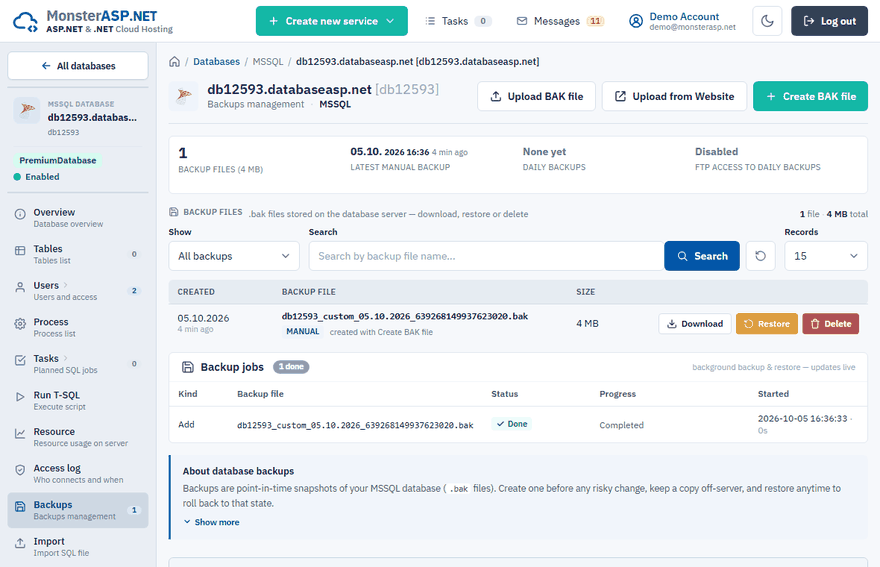
The restore runs in the background and its progress is shown in the Backup jobs panel. Users and access settings of the database are kept. The safety backup is saved to the list as _before_restore_….bak, so you can roll back if the restored backup is not what you expected.
The .bak file must not come from a newer SQL Server
Microsoft SQL Server cannot restore a backup created on a newer version of SQL Server to an older one. This is a limitation of SQL Server itself; changing the compatibility level of the database does not help.
- Restoring to the hosting: the backup must come from the same or an older version than the hosting database server.
- Restoring a hosting backup on your computer: your local SQL Server must be the same or a newer version than the hosting one. If the restore fails, upgrade your local SQL Server (the free Express edition is enough).
You only have a BACPAC file
Import the .bacpac file into SQL Server on your own computer first, create a standard .bak backup of that database and restore the .bak file on the hosting. See Export a local database to a .bak file.
The database was deleted by mistake
If the database was dropped by a script, see Database disappeared or was deleted. Our support can restore it from our latest backup.