Rename a database
Set a friendly name and description, or change the real name on the server.
Every database is identified by its database ID, for example dbXXXX. The ID cannot be changed, but you can give the database a friendly name and a description so that you recognize it in the Control Panel.
Set a friendly name and description
Open the Rename dialog
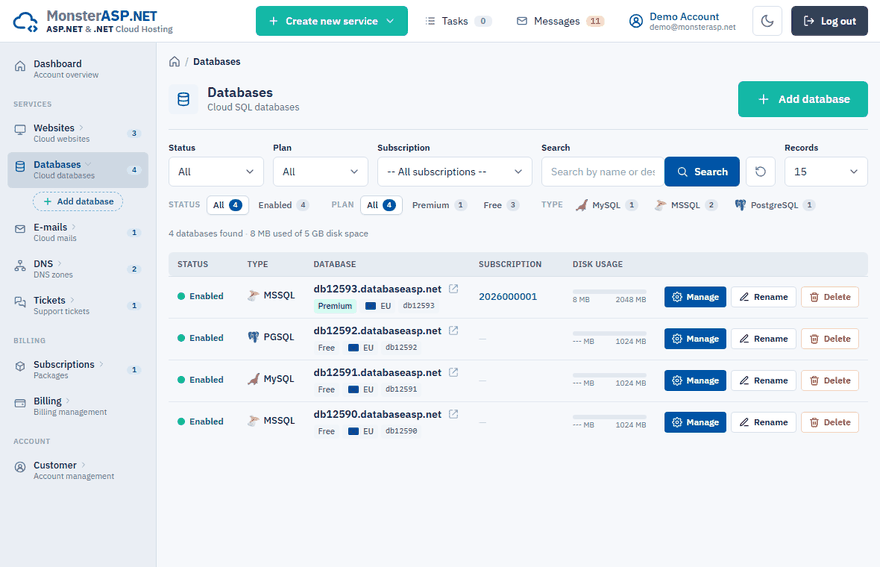
In the Control Panel go to Databases and click Rename next to the database.
Enter the friendly name
Type a Friendly name, for example Shop production, and click Save. It is shown instead of the database ID in lists and menus. Click Use the database ID to go back to the plain ID.
Add a description
Optionally type a Description — your own notes or tags such as production, client XY or staging — and click Save.
Both fields can have up to 200 characters, and each is saved separately. The Preview in lists panel shows how the database will look.
Note
The friendly name and the description are displayed only in the Control Panel. They are not visible in SQL Server Management Studio or other database tools, and they do not change anything in your connection strings.
Change the real name on the server (MSSQL)
An MSSQL database also has a real name on the server — the name shown by SQL clients and used in connection strings. By default it is the database ID. Change it only when you really need a custom name in SQL Server Management Studio.
Warning
Renaming changes the real database name on the server. Every website or application that still uses the old name in its connection string stops working until you update it.
Open the database
Go to Databases and open the database.
Open the dialog
On the Overview page click Change in the Database row.
Enter the new name
Type the custom part of the name into Database name on server. The database ID stays as a prefix. Letters, digits and single underscores are allowed, up to 25 characters. Leave the field empty to use the plain database ID again.
Rename
Click Rename, then copy the new connection string into your applications.
The friendly name in the Control Panel is not affected by this change.