Schedule a planned task
Run recurring jobs for your website on a schedule.
A planned task (also called a scheduled job or cron job) calls a URL of your website on a schedule. Use it for daily cleanups, reports, cache warm-up, sending newsletter batches or any periodic data sync.
Each task sends an HTTP GET request to the URL you specify, so your script runs as a regular web request to your site.
Note
Planned tasks are a Premium feature. On the Free plan new tasks cannot be created — see Upgrade from Free to Premium.
Create a task
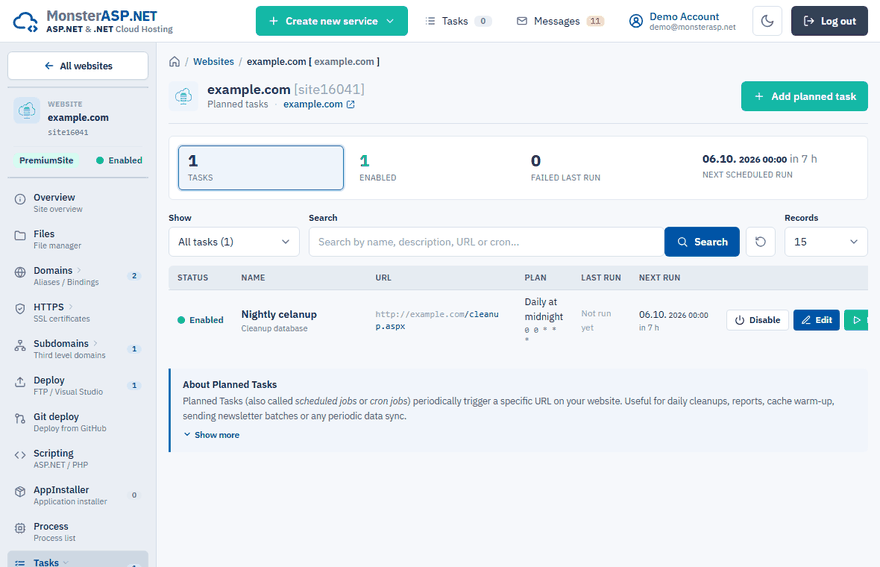
Open Tasks
Sign in to the Control Panel, go to Websites, select your website and choose Tasks in the left menu.
Add a task
Click Add planned task and fill in Name. Description is optional.
Choose the schedule
Under Schedule pick a Preset (for example Every 10 minutes, Every hour or Daily at midnight), or switch to Custom cron and write your own expression.
Enter the target URL
Under Target URL select a domain connected to the website and enter the path, for example
/cron/cleanup.aspx?key=secret.Save
Click Add task.
Important
The task URL is publicly reachable. Protect sensitive endpoints with a secret token in the URL, for example ?key=..., and check it in your code.
Custom cron expressions
A custom schedule is a standard 5-field cron expression:
minute hour day-of-month month day-of-week
| Expression | Meaning |
|---|---|
*/10 * * * * |
every 10 minutes |
0 */2 * * * |
every 2 hours, on the hour |
0 9 * * 1-5 |
weekdays at 09:00 |
30 3 * * 0 |
Sundays at 03:30 |
0 0 1 * * |
first day of every month at midnight |
0 0,12 * * * |
midnight and noon every day |
* means any value, , a list, - a range and / a step. In the day-of-week field both 0 and 7 mean Sunday.
The schedule uses server time: CET/CEST (Berlin) for websites in the EU datacenter and MST/MDT (Salt Lake City) for websites in the USA datacenter.
Limits
- A task can run as often as every minute.
- A single run may take at most the time until the next run of the task, and never more than 5 minutes. A task running every minute is stopped after 55 seconds, an hourly task after 5 minutes.
- The script runs with the same response-time and memory limits as a normal web request.
For long-running jobs return the response quickly and do the heavy work in the background.
Test, edit and delete
Each task in the list has three actions:
- Run calls the URL once, right away. The result and any error message appear in the Last run column; the regular schedule is not affected.
- Edit changes the name, schedule or URL. Tick Run this task immediately after save to test the change at once.
- Delete removes the schedule, so the URL is no longer called. Your website files and data stay untouched.
Use the filter above the list to show only enabled tasks or tasks whose last run failed.