Add your own domain to a website
Attach a custom domain to an existing website and point it to our servers.
You can run a website on your own domain instead of (or in addition to) the free subdomain it was created with. There is no downtime and nothing is lost: the website stays available on its original address while the new domain is being connected.
Important
Your own domains can be added to Premium websites only. You also need a registered domain — see Where to register a domain.
Add the domain
Open your website
In the Control Panel go to Websites and open your Premium website.
Start the wizard
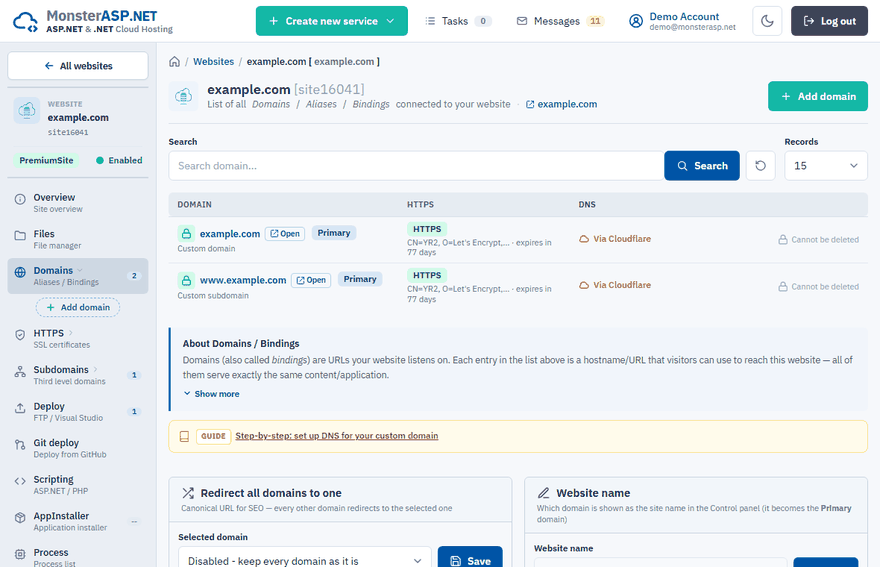
Choose Domains, click Add domain and select Your own domain.
Enter the domain
Type your domain without
www.into Domain name, click Continue and finish the wizard with Add Domain.
Point the domain to our servers
After the domain is added, its DNS has to lead to our servers. You have two options.
Option A: use our name servers (recommended)
Set these name servers for the domain at your registrar:
ns1.machineasp.net
ns2.machineasp.net
ns3.machineasp.net
The whole domain is then managed from our Control Panel. The change can take up to 24 hours.
Option B: keep your DNS provider and add records
Create an A record for the domain and a CNAME record for www. The exact values for your website are shown, with a Copy button, in the last step of the Add domain wizard. Details are in DNS settings for custom domains.
| Name | Type | Value |
|---|---|---|
yourdomain.com |
A | The IP address shown in the wizard |
www.yourdomain.com |
CNAME | siteXXXX.siteasp.net |
Use this option if part of the domain, such as e-mail or other subdomains, should stay with another provider. The change can take up to 3 hours.
Enable HTTPS for the new domain
Certificates are issued per domain, so the new domain needs its own. Go to HTTPS and click Enable HTTPS on its row — see Enable HTTPS with Let's Encrypt.
Warning
If HTTPS Redirect is enabled for the website, a domain without a certificate shows a security warning. Enable HTTPS for every domain you add.
Make the new domain the main one
On the Domains page, select the new domain in the Website name card and click Save. It becomes the Primary domain and the name of the website in the Control Panel. This is only a rename in the Control Panel — it does not affect FTP / WebDeploy, DNS records or certificates.
To send visitors from all other domains to the new one, select it in the Redirect all domains to one card on the same page and click Save.
Common problems
- The domain shows a generic hosting page. The domain points to our servers but is not added to any website. Add it under Domains as described above.
- Invalid Hostname (HTTP Error 400). Your application rejects the new host name — see HTTP Error 400 – invalid hostname.
- The domain still shows the old website. DNS changes take time to spread, and some networks cache old values. See Website works for you but not for some visitors.