Back up an MSSQL database
Create a backup on demand and download the .bak file.
A backup is a point-in-time snapshot of your database in a .bak file. Create one before any risky change, keep a copy off the server, and restore it whenever you need to roll back.
Create a backup and download it
Open the Backups page
In the Control Panel go to Databases, open your database and choose Backups in the left menu.
Create the backup
Click Create BAK file. A fresh full backup is created in the background; the Backup jobs panel shows its progress.
Download it
When the file appears in the Backup files list, click Download to save the
.bakfile to your computer.
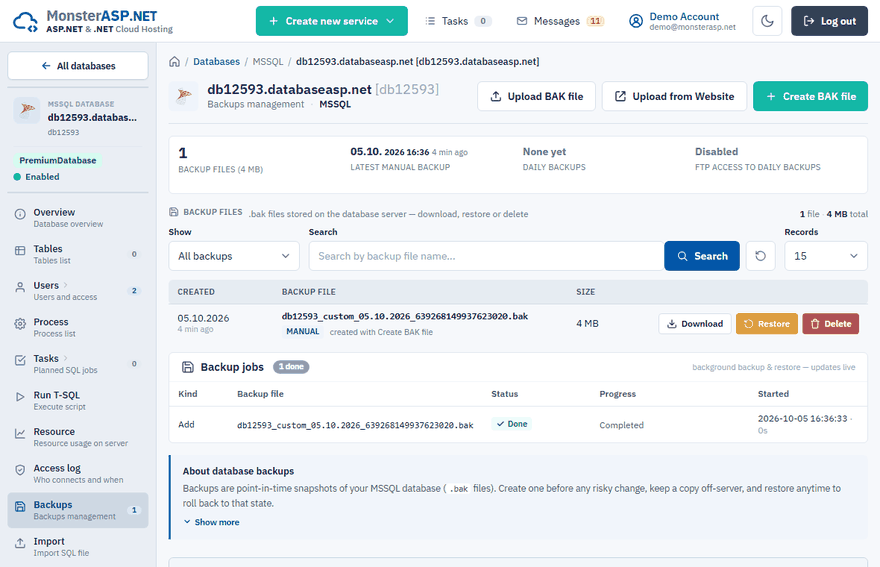
Only one backup or restore can run for a database at a time. The other backup actions are disabled until the running job finishes.
The Backup files list
The list contains .bak files stored on the database server. Use the Show filter to see only one kind:
| Kind | Where it comes from |
|---|---|
| Manual | Created with Create BAK file. |
| Safety (automatic) | Created automatically before a restore (_before_restore_), so you can roll back. |
| Uploaded | Brought in with Upload BAK file (from your computer, up to 2 GB) or Upload from Website (a .bak file already uploaded to one of your hosted websites). |
Each file can be downloaded, restored or deleted. Deleting a backup file does not affect the database itself. To restore, see Restore an MSSQL database.
Daily backups (Premium)
Premium databases are also backed up automatically once per day, with no action needed. The daily backups are stored on separate storage, off the database server, and older ones are removed automatically.
To use a daily backup, click Upload next to it in the Daily backups panel. It is copied into the Backup files list, where you can download or restore it.
Note
Automatic daily backups are a Premium feature. On the Free plan create and download your own backups regularly.
FTP access to daily backups (Premium)
The FTP access to daily backups panel gives you a dedicated FTP/SFTP account for browsing and downloading the daily .bak files — for example to mirror them to your own storage with a scheduled FTP client.
Enable the account
Switch the panel to Enabled. This is possible once at least one automatic backup of the database exists.
Connect
Use the FTP server, Ports, Login and Password shown in the panel, or click Open next to WebFTP to browse the files in the browser.
Tip
Prefer FTPS or SFTP, so that credentials and data travel encrypted. Switch the access off again when you no longer need it.
The daily backups are kept in a separate data center, independent of our other services, so they stay accessible even during an outage of the hosting servers. You can connect with any FTP client, for example FileZilla, WinSCP or Total Commander.
Extract .zpaq archives
If the files on the backup FTP account have the .zpaq extension, they are ZPAQ archives — an archive format that keeps several versions of the backup in one file. Extract them with the free zpaqfranz tool.
On Windows download zpaqfranz.exe from the releases page. On Linux or macOS:
wget https://github.com/fcorbelli/zpaqfranz/releases/latest/download/zpaqfranz
chmod +x zpaqfranz
Extract the archive into the current folder, or into another folder with -to:
zpaqfranz x backup.zpaq
zpaqfranz x backup.zpaq -to C:\Restore
| Command | What it does |
|---|---|
zpaqfranz l backup.zpaq |
Lists all backup versions in the archive. |
zpaqfranz x backup.zpaq -until 2025-11-01 |
Extracts the version from the given date. |
zpaqfranz x backup.zpaq -all |
Extracts all versions of the .bak file. |
Download the backups automatically
To download the daily backups on a schedule you can use the command-line client NcFTP. Fill in the values from the FTP access to daily backups panel:
ncftpget -z -u <login> -p <password> <ftp-server> <local-folder> /*.zpaq