Deploy from a ZIP file
Upload a ZIP archive in the File manager and extract it on the server.
Uploading a project as one ZIP archive and extracting it on the server is usually much quicker than uploading hundreds of small files one by one. You do everything in the browser, in the File manager of your website.
Prepare the archive
Pack the published content of your website into a single .zip file — the files that should end up in /wwwroot, not the source code of your project. Only archives with the .zip extension can be extracted in the File manager.
Upload and extract
Open the File manager
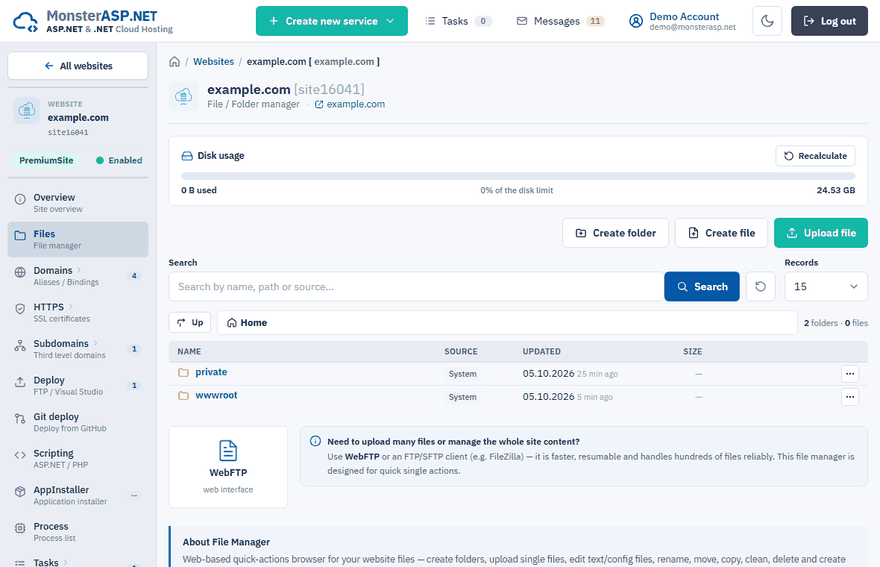
Sign in to the Control Panel, go to Websites, select your website and choose Files in the left menu.
Upload the archive
Click Upload file and choose the ZIP file or drop it into the window. A single file can have up to 2 GB. Keep the window open until the upload finishes.
Start the extraction
Click Unzip on the row of the uploaded archive.
Choose the target folder
Click a folder to select it as the Target folder. Website content usually goes to
/wwwroot.Set the options and confirm
Tick the options you need (see below) and click Unzip.
| Option | What it does |
|---|---|
| Overwrite existing files in the target | Files from the archive replace files with the same name. If unchecked, existing files are kept and only new ones are extracted. |
| Restart application pool before extracting | Stops the application pool of the website first, so files locked by the running application (for example DLLs in use) can be overwritten. The pool starts again automatically. |
Tip
When you deploy a new version over a running .NET application, tick both options. Otherwise locked files cannot be replaced — see Files are locked during deployment.
Follow the progress
The extraction runs in the background. The ZIP jobs panel at the bottom of the File manager shows the source, result, status and progress of each job and updates live.
Note
Only one ZIP job can run for a website at a time. While it is running, further Zip/Unzip actions are disabled until it finishes.
After the extraction
Open /wwwroot in the File manager and check that your files are directly inside it. If the archive contained a top-level folder, your site ends up in /wwwroot/that-folder and the website answers with 403 – Forbidden. In that case move the files up with Move to… from the ··· menu, or extract the archive again without the extra folder.
When everything works you can delete the ZIP file from the server — it counts towards the disk usage of the website.
Download the website as a ZIP
It also works the other way round: open the ··· menu on the row of a folder and choose Create ZIP archive. The archive is created in the background and you can then download it — a quick way to take a copy of the website before a bigger change.