Set up Mozilla Thunderbird
Add your mailbox to Thunderbird using IMAP and SMTP.
This guide adds your mailbox to Mozilla Thunderbird using IMAP for incoming mail and SMTP for outgoing mail.
Before you start
You need three things:
| What | Where to find it |
|---|---|
| Mail server name | mailXXX.mailasp.net — in the Control Panel go to E-mails, click Manage next to your domain and read the Server field on the Overview page. |
| Username | The full e-mail address of the mailbox, for example info@yourdomain.com. |
| Password | The password of the mailbox. |
Add the account
Open the account setup
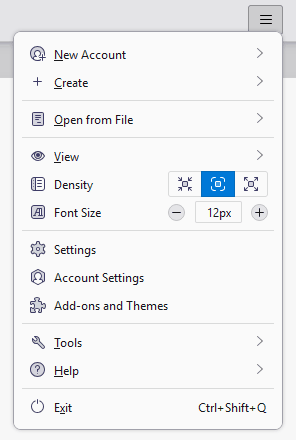
Start Mozilla Thunderbird. On the first start the e-mail account setup wizard opens automatically. Otherwise open it from ☰ Menu → Account Settings → Add Account → Existing Email Account.
Enter your account details
Fill in the form and click Continue:
Field Value Your Name The name recipients will see, for example John DoeEmail Address info@yourdomain.comPassword The password of the mailbox Remember Password Ticked 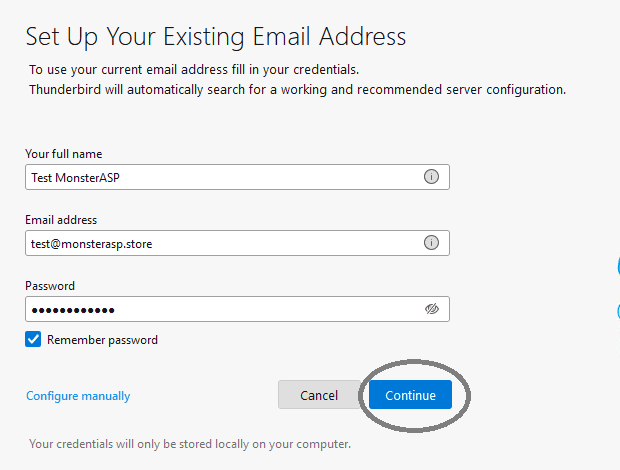
Enter the server settings
Click Configure manually and set the incoming and outgoing server:
Server Port Encryption method Authentication method Incoming mail (IMAP) mailXXX.mailasp.net993SSL/TLS Normal password Outgoing mail (SMTP) mailXXX.mailasp.net465SSL/TLS Normal password Replace
mailXXXwith the server name from the Control Panel.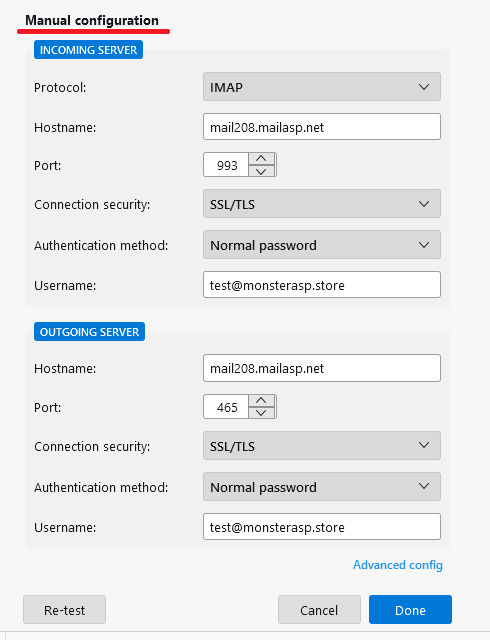
Verify the settings
Click Re-test. If everything is correct, click Done and the account is added.
Test the account
- Send a test e-mail to check that outgoing mail works.
- Send a message to the mailbox from another address to check that incoming mail arrives.
Troubleshooting
If Thunderbird cannot connect, check the server settings again. Then try to sign in to WebMail with the same e-mail address and password — this tells you whether the address and password are correct.
Tip
Besides SSL/TLS on ports 993 and 465, the mail server also accepts STARTTLS on ports 143 (IMAP) and 587 (SMTP). See IMAP, POP3 and SMTP settings.