View and restart processes
See the running processes of a website and recycle the application.
The Process page lists the processes that are running for your website right now, with their memory and CPU usage. From here you can also stop a single process or restart the whole application.
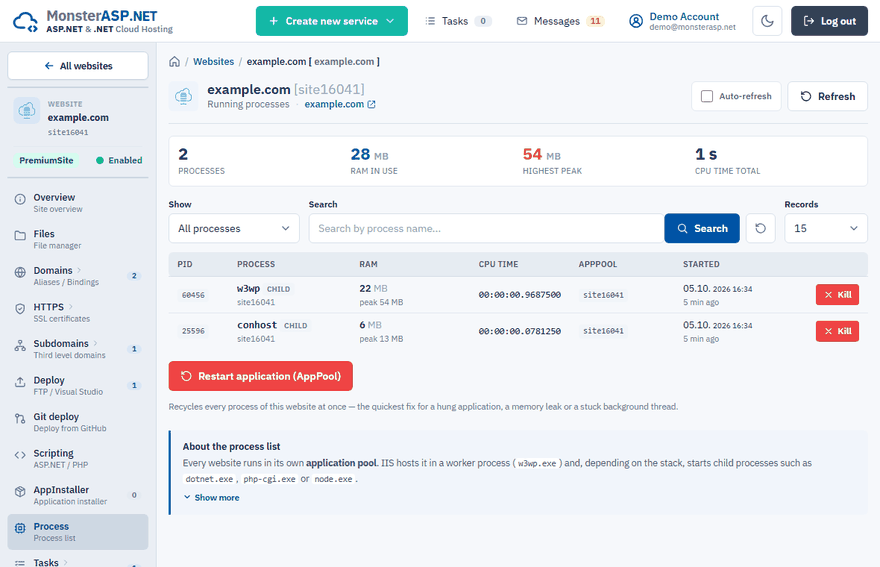
You find it in the Control Panel under Websites → your website → Process.
What you see
Every website runs in its own application pool. The web server (IIS) hosts it in a worker process, w3wp.exe, and depending on your application starts child processes such as dotnet.exe, php-cgi.exe or node.exe.
| Value | Meaning |
|---|---|
| RAM in use | The current working set — memory the processes use at this moment. |
| Highest peak | The highest amount of memory a process has used since it started. A peak far above the current value usually points to a memory-hungry request or a leak that was later collected. |
| CPU time total | Total processor time consumed since the process started. It is not a percentage. A value that grows quickly while the site is idle indicates a busy loop or a runaway background job. |
Use the Show filter to display only the IIS worker (w3wp) or only Child processes.
The list is a snapshot. Click Refresh to update it, or switch on Auto-refresh to reload the page every 10 seconds while you watch the processes.
Note
No running process is not an error. The application pool is idle and IIS starts a worker process with the first incoming request. To avoid the idle stop, see Keep your application always running.
Restart the application
Open the Process page
Open your website and choose Process in the left menu.
Restart
Click Restart application (AppPool).
This recycles every process of the website at once. It is the quickest fix for a hung application, a memory leak or a stuck background thread. The same button is on the Scripting page.
Kill a single process
Click Kill on the row of a process to terminate it immediately.
Warning
Requests that the process is handling at that moment are aborted. IIS starts a fresh worker process with the next request.
Use Kill when one specific process is stuck. To restart everything, Restart application (AppPool) is the better choice.
Related
- Check resource usage — long-term trends of CPU, memory and disk
- Increase the memory (RAM) of a website
- Application keeps restarting or loses sessions