Create a rule on the mail server
Sort, forward or delete incoming messages automatically with server-side rules.
A rule on the mail server processes incoming or outgoing messages automatically — for example moves them to a folder, forwards them or deletes them. Rules are created in WebMail (SmarterMail), in the Content Filtering settings.
Create a rule
Sign in to WebMail
Open WebMail and sign in with the e-mail address and password of the mailbox. You can also open WebMail from the Control Panel, which signs you in automatically — the WebMail link in the Access to E-mails card on the Overview page of your e-mail domain opens the
postmaster(domain administrator) mailbox.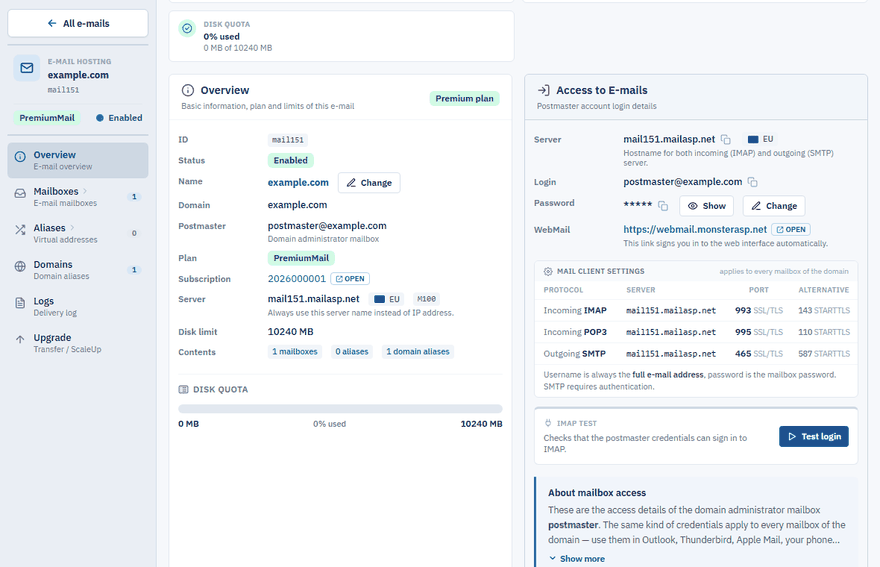
Open the settings
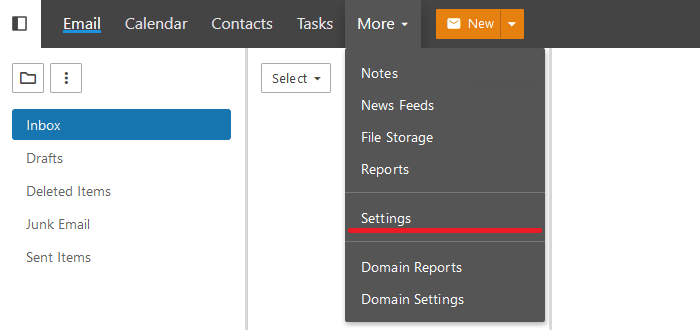
Click More and select Settings from the menu.
Open Content Filtering
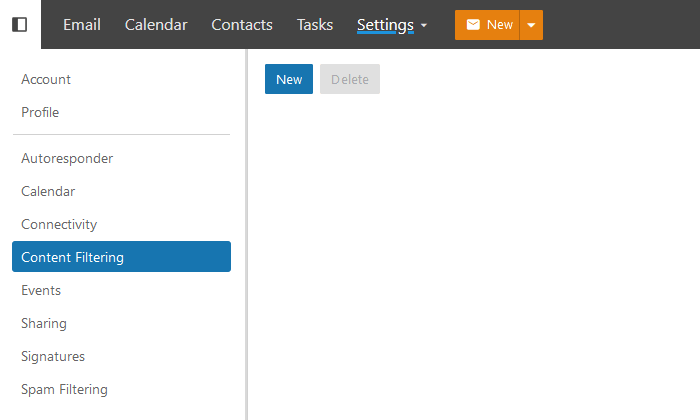
In the left menu select Content Filtering and click New.
Name the rule and set its conditions
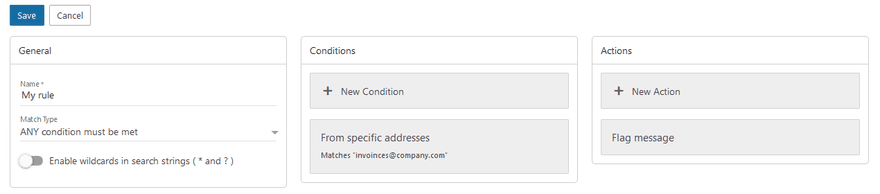
Give the rule a name and choose when it applies, for example:
- the sender contains a specific address,
- the subject contains a specific word,
- the message has a certain size.
Choose an action
Choose what happens to a matching message, for example:
- move it to a folder,
- forward it to another e-mail address,
- delete it.
Save
Click Save.
From now on the mail server handles messages according to the rule.
Note
To forward all incoming mail of a mailbox you do not need a rule — see Forward e-mails to another address.