HTTP Error 403 - forbidden
Your files are probably not in the wwwroot folder - here is how to check.
403 – Forbidden: Access is denied right after uploading a website almost always means that the web server did not find any content in the place where it looks for it.
Your files must be in wwwroot
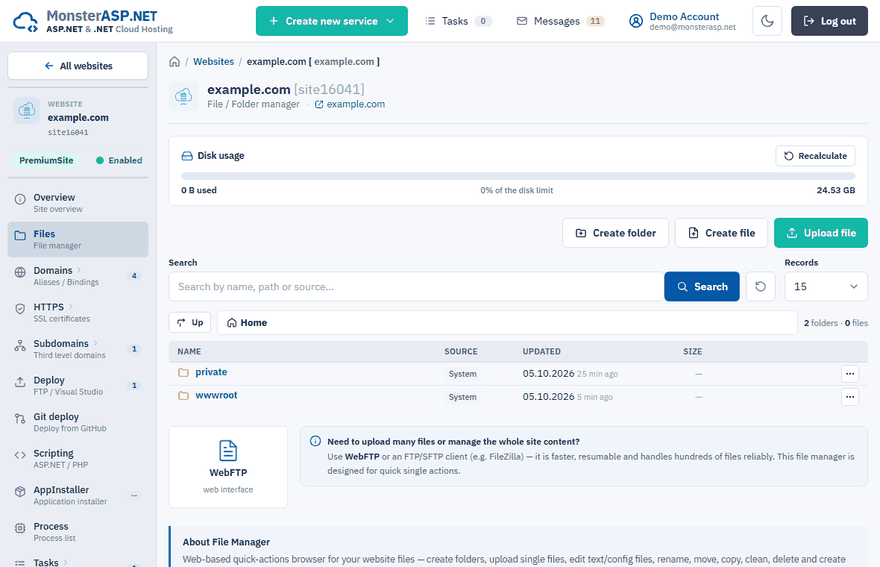
All website content has to be uploaded inside the wwwroot folder. When you connect over FTP or SFTP you start one level above it, in the root of your account. If you upload your files there, the web server finds an empty wwwroot and answers with 403.
Connect to your website
Use FTP/SFTP or open Files for the website in the Control Panel.
Check where your files are
Your
web.config, DLL files orindex.htmlshould be directly inwwwroot.Move them if needed
If they are next to the
wwwrootfolder instead of inside it, move them intowwwroot.
Note
An ASP.NET Core application has its own wwwroot folder for static files. After publishing you will therefore see the path /wwwroot/wwwroot on the server. That is normal and expected — the outer folder is the root of the website, the inner one belongs to your application.
There is no default document
For a static website the server looks for a default page such as index.html. If your start page has a different name, rename it or open the page by its full address.
403 only for you, or only on your own domain
If the website opens on its runasp.net address or from other networks but not for you, the request is probably not reaching our server at all — for example because your domain still points to a previous hosting provider. See Website works for you but not for some visitors.