Install an application with AppInstaller
Install ready-made applications to your website in a few clicks.
AppInstaller installs ready-made applications and starter projects into your website in one click. The files are deployed to the website root and, where needed, the application is connected to your database.
Before you start
- The website root (
/wwwroot) must be empty. The installer refuses to overwrite existing content. - If the application needs a database, the database must already exist and must be empty — without any tables. The installer creates the tables itself.
- The website must run the right scripting — PHP or the required .NET version. The catalogue marks applications that need a change with a warning icon; change the setting on the Scripting page first. See Choose the .NET and PHP version.
Note
PHP applications cannot be installed on a website where PHP is not available, which is the default on the Free plan. Pick a .NET application from the catalogue, upgrade the website, or create a support ticket if you need PHP there.
Install an application
Open AppInstaller
Sign in to the Control Panel, go to Websites, select your website and choose AppInstaller in the left menu.
Pick an application
Select the application in the catalogue.
Select the database
If the application needs one, choose an empty database under Database.
Select the address
Under Domain / address choose the domain the application should run on. The application is installed into the root of the website and is reachable on this address.
Install
Click Install now.
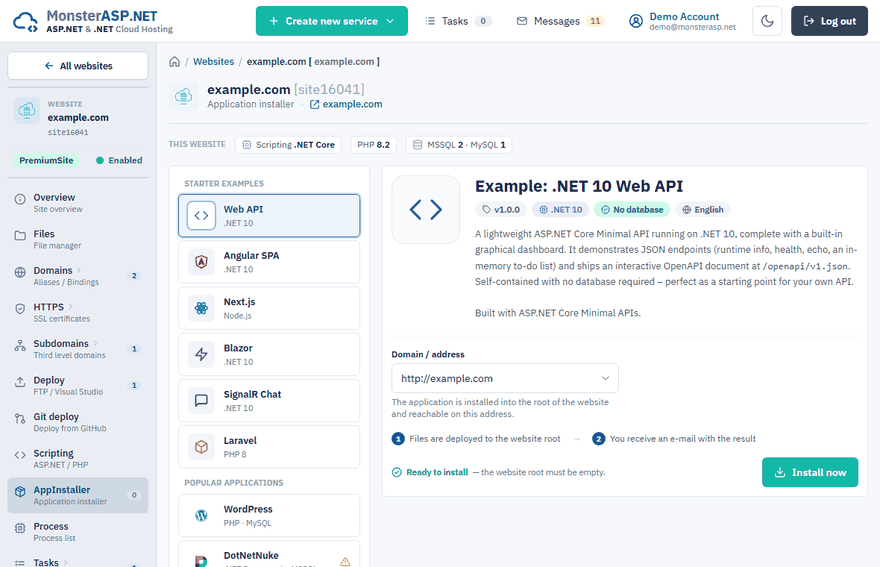
The installation runs in the background. Installation history shows the last installations of the website and refreshes automatically while one is running. The admin credentials of the installed application are sent to you by e-mail.
The website is not empty
If /wwwroot already contains files, the installer shows the message This website is not empty — the application cannot be installed. You can either clean the folder yourself in the File manager, or delete the content and install the application in one step:
Save what you need
Download anything you want to keep — in the File manager as a ZIP archive, or over FTP.
Confirm the deletion
Tick I understand that all content of /wwwroot will be permanently deleted.
Delete and install
Click Delete website content and install. The application pool is restarted first, so files locked by the running application can be removed.
Warning
This permanently deletes all files and folders in /wwwroot — your current website, uploaded files, configuration files such as web.config and appsettings.json, and logs. It cannot be undone and the files cannot be restored. Databases are not affected.
After the installation
If you enable HTTPS for the domain later, some applications also need their own address updated in their administration — see Enable HTTPS with Let's Encrypt.