How to run Angular SSR sample application
This article contains steps how to run sample Angular SSR (Server-Side rendering) application on MonsterASP.NET hosting.
ASP.NET / .NET freehosting
If you don't already have our ASP.NET / .NET freehosting, sign up for FREE at https://MonsterASP.net/.
1) Initial setup (Create website)
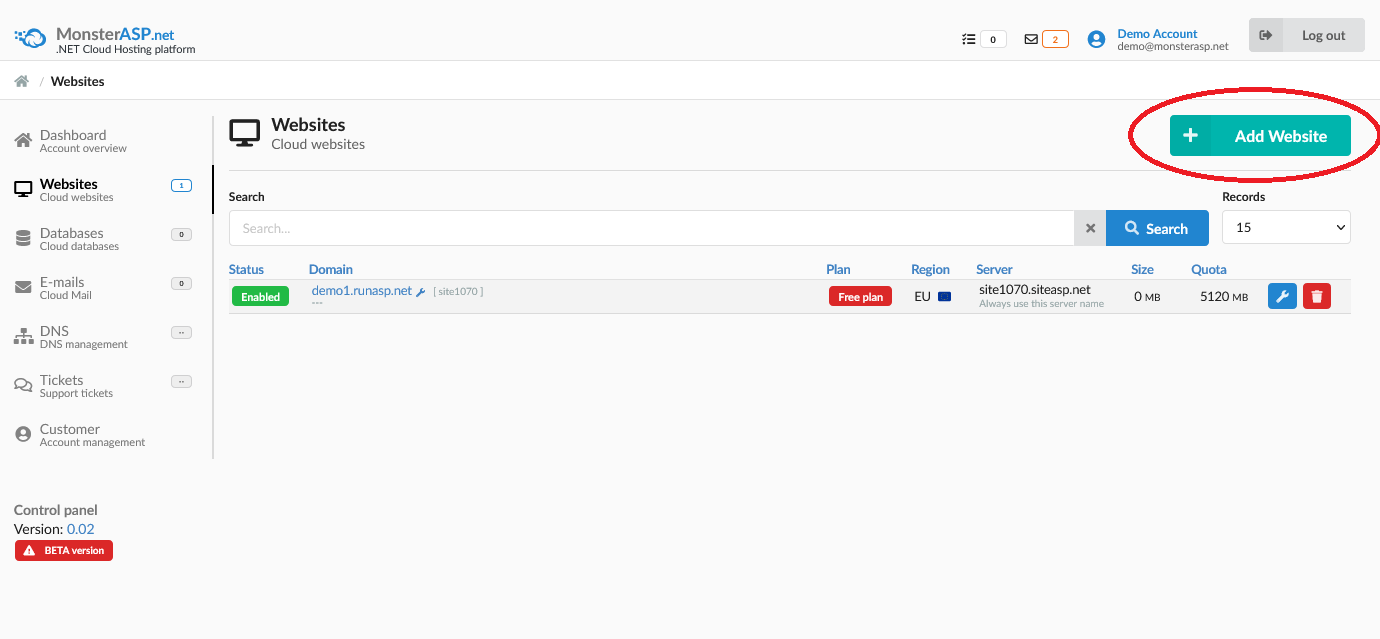
Create website from our hosting Control panel.
2) Download sample Angular application
As example we use Angular 20 Example HttpClient from public source on github:
https://github.com/ganatan/angular-httpclient
Open command prompt on your computer and run following commands:
#### download application from github
git clone https://github.com/ganatan/angular-httpclient.git

#### change directory
cd angular-httpclient

#### install dependencies
npm install

#### start server
npm start

#### build production
npm run build
You have now prepared Angular 20 SSR application for deployment to production server in \dist\angular-starter\ directory.
Content of \dist\angular-starter\ directory looks like this:

3) Upload application to server
Upload entire content of directory \dist\angular-starter\ to target directory /wwwroot on your Website. You can use FTP/SFTP access to upload content.
How to publish files via FileZilla Client
4) Upload web.config file
To run Angular application you must also upload configuration web.config file to /wwwroot directory which contains necessary configuration for your application.
web.config (necessary configuration file)
<configuration>
  <system.webServer>

    <handlers>
      <add name="httpPlatformHandler" path="*" verb="*" modules="httpPlatformHandler" resourceType="Unspecified" />
    </handlers>

    <httpPlatform processPath="node" arguments=".\server\server.mjs" startupTimeLimit="20" stdoutLogEnabled="false" stdoutLogFile=".\logs\node">
      <environmentVariables>
        <environmentVariable name="PORT" value="%HTTP_PLATFORM_PORT%" />
        <environmentVariable name="NODE_ENV" value="production" />
      </environmentVariables>
    </httpPlatform>

  </system.webServer>
</configuration>
Folder \wwwroot is website root and web.config files must be located in this directory.
5) Open website url
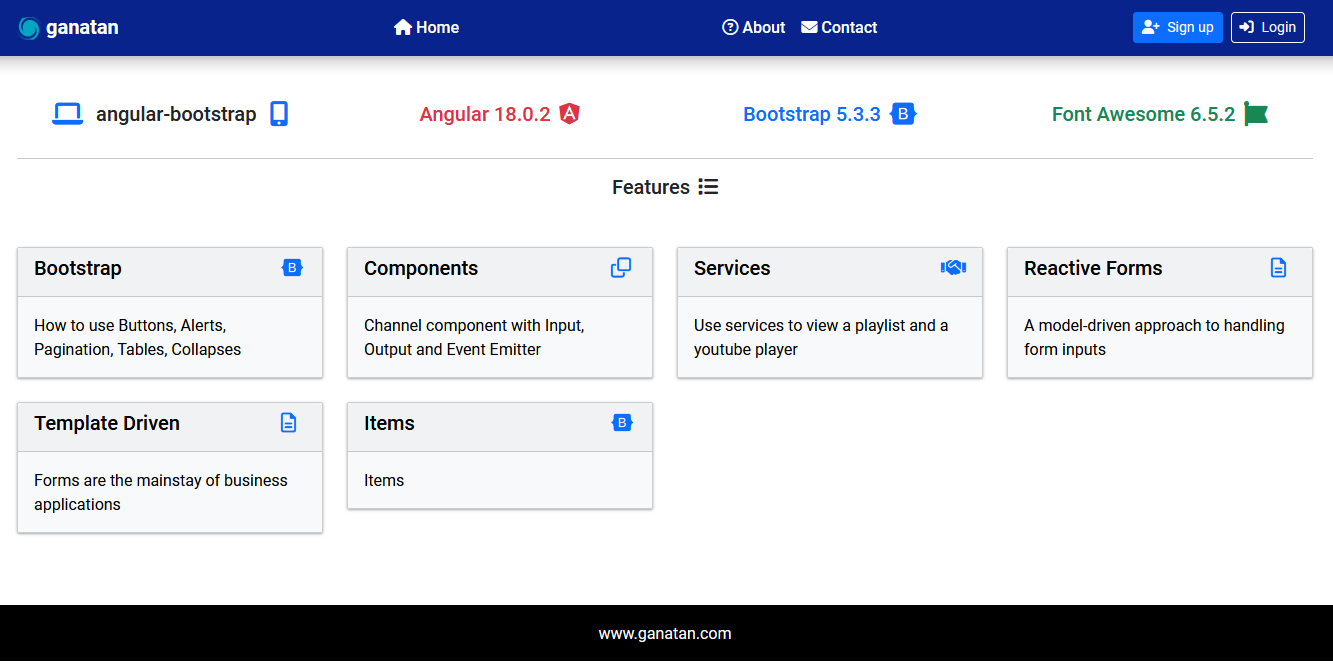
After uploading both necessary files just go to your website URL and you should see Angular 20 Example HttpClient :